Notes, Journal, and Tasks in One App: A Daily Workflow
A daily workflow in Snipset: plan tasks with natural-language quick add, capture labeled notes, focus with Pomodoro, and let the journal recap your day.

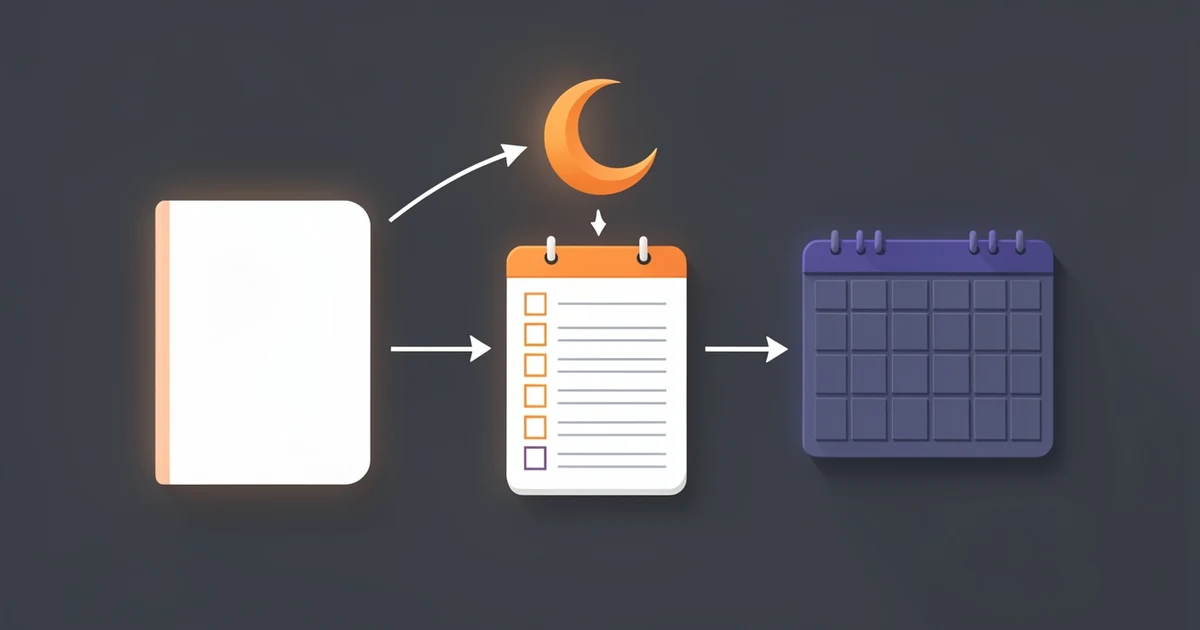
Most of us juggle a task app, a notes app, and maybe a diary we stopped writing in March. Snipset keeps all three in one place, so a daily workflow can run from one window: plan the morning in Tasks, capture ideas in Notes as the day goes, focus with the Pomodoro timer, and let the journal write the evening recap from what you actually did. This tutorial walks through one realistic day and says what each piece does and where it runs.
Notes, Tasks and the journal are part of the Snipset desktop app on Windows and Linux. The Android app does not have them yet: it covers snippets, clipboard history, statistics and settings.
Morning: Plan the Day in Tasks
Open Tasks and sort the work into projects. Each project gets a name and a color, so "ClientA" and "Personal" do not blur together. Open a task to see its detail drawer, where you can break it into subtasks, one line each, added with Enter.
For quick capture, open the Tasks & Todo Menu with its shortcut. It shows today's tasks and has one input line. Type a task the way you would say it:
Review PR besok jam 10 #work p1 @ClientA
Snipset reads the tokens as you type and shows what it found:
- Dates:
today/hari ini,tomorrow/besok,day after tomorrow/lusa,next week/minggu depan. - Times:
10am,3:30 pm,jam 10, or3 sore. - Priority:
p1top4. Without one, the task gets priority 4. - Tags: every
#wordbecomes a tag. - Project:
@nameputs the task in the project with exactly that name (case does not matter, no spaces), if one exists.
The tokens are removed from the title, so the task above is saved as "Review PR" with a due date, a tag, priority 1 and a project. This parsing is plain pattern matching on your computer. No AI model is involved, so it works offline and answers instantly.
Keep Todoist in the Loop
If your team lives in Todoist, paste your Todoist API token in the Todoist Sync panel of the Tasks page. Snipset stores it in your system keychain: encrypted with your Windows account (DPAPI) on Windows, and in Secret Service on Linux. A manual sync imports your Todoist tasks. Two switches decide what goes the other way: pushing completed tasks back to Todoist, and pushing new Snipset tasks to Todoist. Both start off.
Midday: Capture Notes Without Losing Them
During the day, ideas go into Notes. A few habits keep them findable:
- Pin the notes you return to. The Pinned filter shows only them.
- Add labels, then click a label chip in the sidebar to filter by it.
- Use Search notes... to match words in titles and note text. Pinned matches come first.
When a note is a messy brain dump, open AI actions:
| Action | What it does |
|---|---|
| Generate title | A short title of at most 6 words, in the note's language |
| Generate labels | Up to 4 single-word labels |
| Summarize | A summary of the note |
| Improve writing | Rewrites the selected text, or the whole note if nothing is selected |
These actions run on your local Ollama model by default. If Ollama is offline, Snipset says "AI unavailable while Ollama is offline." You can route them to Claude through Snipset's server instead by turning on the Note AI switch under Claude AI (cloud). Every Claude switch starts off.
Afternoon: Focus on One Task
When it is time for deep work, start a Pomodoro session. The timer lets you pick one of today's tasks to work on (or any open task when none are due today), so the session is tied to the list you planned in the morning. We covered the timer itself in the Pomodoro technique with Snipset.
Evening: The Daily Journal Finishes Your Workflow
The journal is the part that writes itself. It is built from Snipset's activity tracking, which stays off until you turn it on and give consent. Once it runs, the journal for a day draws on:
- the apps you worked in and the topics they show, plus your typing and mouse activity levels;
- that day's numbers from the rest of Snipset, such as tasks completed and created, dictation, snippets and clipboard use;
- up to five of the day's screenshots from activity capture, when there are any, scaled down to 1024 pixels (Windows only; Linux records window and input activity without screenshots);
- a short git summary of the folder Snipset was started from, when that folder is a git repository.
From that, the AI writes a first-person diary entry with sections such as What I did, What moved forward, Blockers and Tomorrow, plus a title and a label for the kind of day (deep work, distracted, meeting heavy, light work or recovery). You choose the tone and the writing language in the journal settings; the defaults are Casual and English.
When the Entry Gets Written
Click Generate Journal to write today's entry at any time. Snipset also fills gaps on its own while it runs: for any of your seven most recent days with activity that has more than 20 events and no entry yet, it writes one. For today, it waits until 23:45, so the entry covers the whole day. You can edit an entry, or delete it.
Which Model Writes It
By default the journal is written by your local Ollama model, using a vision-capable model when screenshots are included and one is available. If you turn on the Daily journal switch under Claude AI (cloud), Claude writes it through Snipset's server instead. In that case the day's activity (app and window titles, input activity levels, that day's numbers from the rest of Snipset, the git summary when there is one, the text of the entry for its title and label) and up to five screenshots are sent to Claude, so leave the switch off if you want the journal to stay on your computer.
Where Each Piece Runs
| Piece | Windows | Linux | Android |
|---|---|---|---|
| Notes, labels, pin, search | Yes | Yes | No |
| Note AI actions | Yes | Yes | No |
| Tasks, projects, subtasks | Yes | Yes | No |
| Tasks & Todo Menu quick add | Yes | Yes | No |
| Todoist sync | Yes | Yes | No |
| Daily journal | Yes | Yes | No |
| Screenshots in the journal | Yes | No | No |
Try This Daily Workflow in One App
Plan in the morning, write things down at noon, focus in the afternoon, and read back what happened at night, all without switching apps. Start with one project and one pinned note, then turn on activity tracking when you want the journal. See Snipset plans and pricing →