Faster Recurring Communication with Templates and Prompts
Module 07 of Digital Savvy. Combine snippets with reusable AI prompts so replies that need a small judgement call still come out fast.
[Video placeholder. Recording pending. The lesson shows a refund reply template that uses an AI prompt to soften the tone based on the customer's message.]
Where templates stop being enough
Modules 03 to 06 cover the case where the message has a fixed skeleton and only the details change. That covers a lot, but not everything. Some recurring messages need a small judgement call: how apologetic should this reply be, is this a fair counter-offer, which of three policy lines applies.
You have two options for these:
- Keep them hand-written, accept the time cost, and move on.
- Keep the template but add an AI prompt that handles the judgement piece.
This module is about option 2. Done right, you keep the consistency and speed of templates while the AI handles the part that would otherwise have been hand-written.
What a prompt snippet looks like
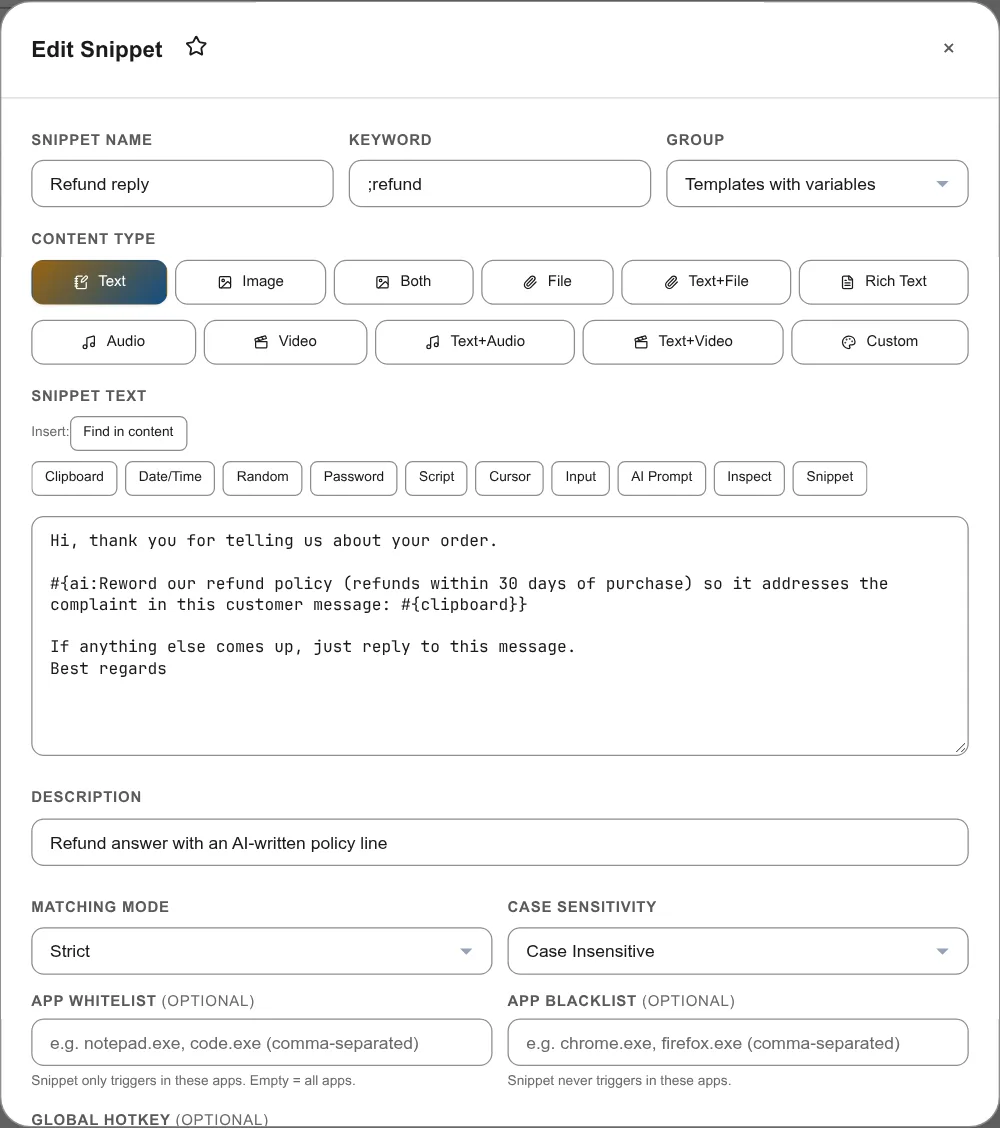
In Snipset, a snippet can include a #{ai:prompt} variable. When the snippet expands, the prompt is sent to your local Ollama instance and the response replaces the variable. The skeleton stays yours. The variable becomes a small block of generated text.
Concretely, a refund reply might look like:
- Trigger
;refund - Body skeleton: a fixed opening, a fixed closing, and in the middle a
#{ai:Reword our refund policy (refunds within 30 days of purchase) so it addresses the complaint in this customer message: #{clipboard}}.
You write the policy line. Copy the customer's message before you expand the snippet: #{clipboard} inside the prompt passes it to the AI, which picks the phrasing that fits the specific complaint. The customer reads a reply that sounds like you thought about their case, because the AI thought about it on your behalf.
When to use it, when not to
Use it when:
- The skeleton is fixed and you trust the AI to vary the middle.
- The middle is short (a sentence or two, not a paragraph).
- Privacy matters and you use a local (offline) Ollama model, so the prompt stays on your device.
Do not use it when:
- The reply needs a real human voice (an apology, a sensitive negotiation).
- The middle is long enough that the AI might invent facts. Keep AI output short and easy to verify.
- You cannot review the output before it goes out. The first few times, you review every expansion.
The AI Companion prompt list
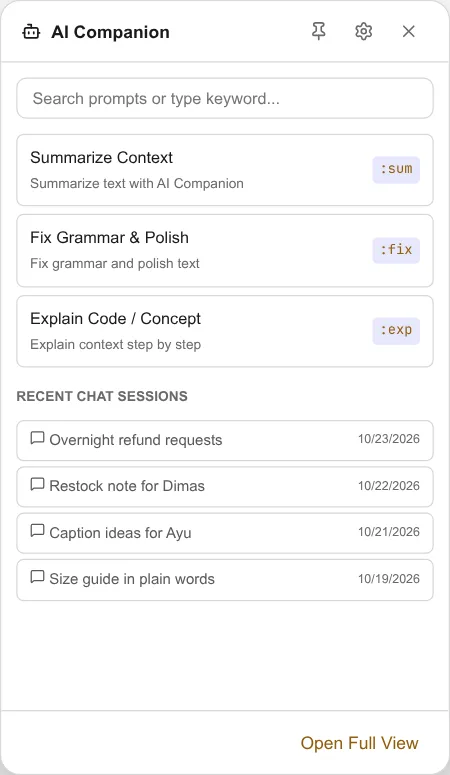
Snipset keeps reusable prompts in the AI Companion group, which a new install fills with three starter prompts. Turn on AI Companion and a floating icon appears on the right edge of your screen; the AI Companion floating panel lists every snippet in that group, and in any group whose name contains "AI Prompt", with a "Search prompts or type keyword..." box. Picking one opens it in the AI Companion chat, so you can run a prompt without writing a fresh one each time.
The list is most useful when you have ten or more prompt snippets. Before that, a search through your snippet library is fast enough. Once you have twenty, the list becomes the fastest way to find the right one.
Exercise: build one prompt snippet
From your Module 02 bucket, pick one item where the skeleton is fixed but the middle varies. Write the skeleton. In the middle, insert one #{ai:...} prompt that handles the variable part. Use it three times. Read every output before you send.
After a week, if the outputs are reliably good, drop the manual review for that snippet.
What is next
Module 08 zooms out from individual snippets to the library as a whole. Keeping twenty snippets useful requires more discipline than keeping five useful.