Building a Maintainable Template and Prompt Library
Module 08 of Digital Savvy. Move from five snippets that you remember to twenty snippets that you can find. Categories, naming, backup, and the AI Companion prompt list.
[Video placeholder. Recording pending. The lesson walks through organizing a real, messy snippet library into something that survives the next quarter.]
The library starts at twenty
Below twenty snippets, your brain is the index. You remember every trigger. Above twenty, you forget. The library stops being a tool and starts being a search problem.
If you have skipped ahead and already have thirty or forty snippets, you have probably noticed the effect: triggers you cannot remember, snippets you wrote and forgot about, and a growing suspicion that the tool is making your life harder, not easier.
The fix is not to write fewer snippets. The fix is to organize the ones you have.
Three rules that hold up
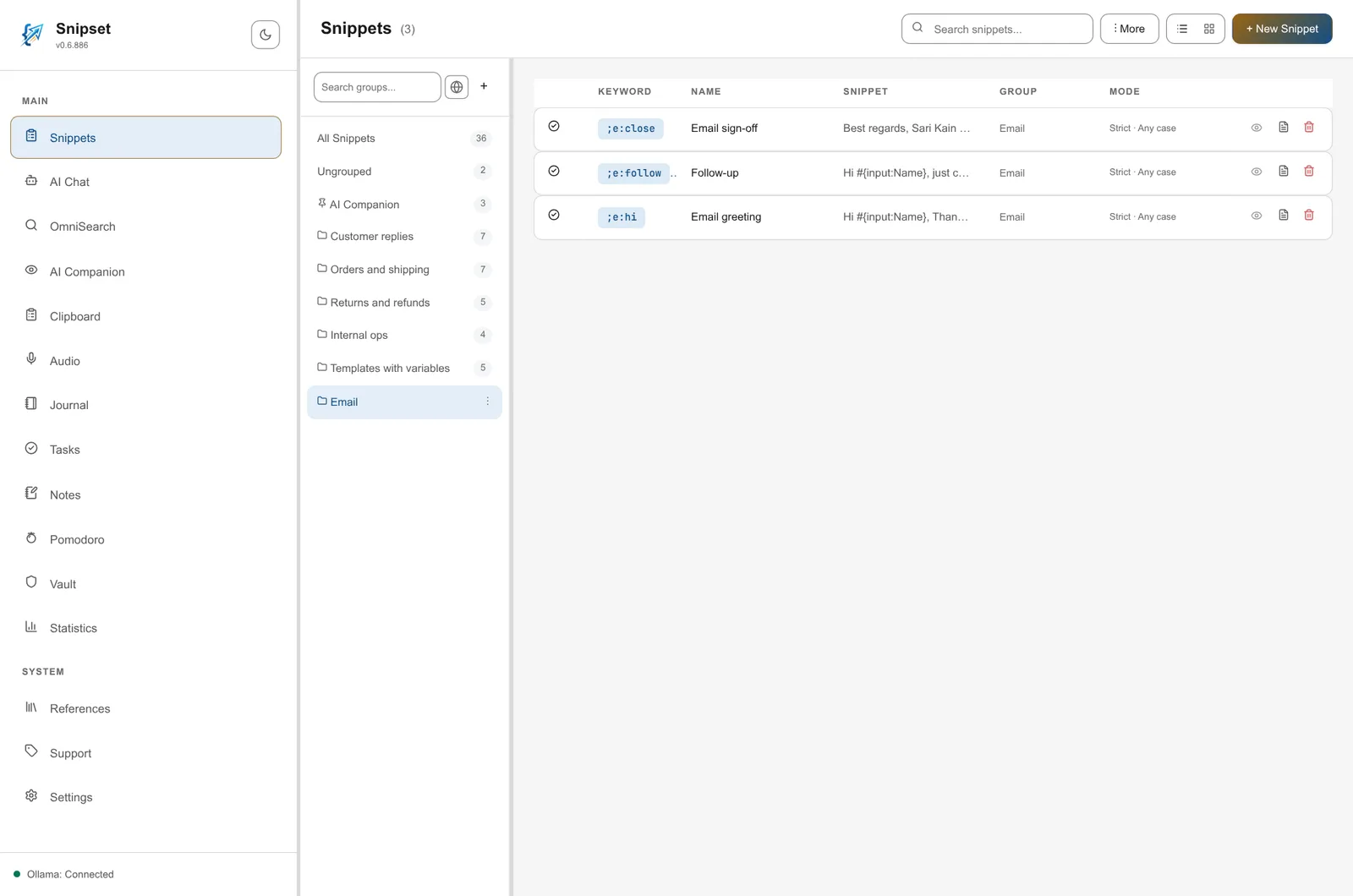
Rule one: groups by purpose, not by source. A snippet that closes an email goes in the "Email" group whether you wrote it from scratch or imported it. A prompt that summarises a meeting goes in "AI Prompt: Meetings" whether you first saved it in the AI Companion group or in a custom group; the "AI Prompt" prefix keeps it in the AI Companion prompt list. Mixing "things I made" with "things I imported" creates a folder structure nobody can navigate.
Rule two: triggers follow a prefix system. Pick a punctuation mark you never type at the start of a normal word. Use it as the prefix for all your custom triggers. Reserve that prefix for your own snippets so you never collide with built-in ones. Then use a sub-prefix per group: ;e: for email, ;s: for sales, ;m: for meetings.
Rule three: every snippet has a one-line description. Snippet search matches the description along with the keyword, name, and body, so a clear description is what you will find a snippet by. A snippet whose description is blank is a snippet you will rewrite in six months because you cannot remember why it exists.
Backup as a habit, not a project
Snipset supports JSON export and import. Make this a quarterly habit, not a "I will do it when I have time" task. Set a calendar reminder. The library that survives a hardware failure is the library that survives.
If you keep your library in a version-controlled folder, even better. The diff between "last quarter's library" and "this quarter's library" tells you what you actually changed. That is useful information when you wonder why a snippet no longer feels right.
The AI Companion prompt list
Once you have ten or more prompt snippets, the AI Companion prompt list becomes your primary surface. Three habits make it work:
- Group your prompts by task, not by source. The list shows every group whose name has "AI Companion", "AI Prompt", "Pendamping AI", or "Perintah AI" at the start of a word (in the English names a hyphen or underscore may replace the space), so name task groups "AI Prompt: summarise", "AI Prompt: draft", and "AI Prompt: rewrite" (snippets in these groups only fire while AI Companion is on).
- Drop prompts you have not used in a quarter into a "maybe later" group, not the trash. Some prompts go unused for a season and become useful again.
- If a prompt is bad, rewrite it the same day. A bad prompt in your library is worse than no prompt, because it trains your muscle memory to reach for the wrong thing.
Exercise: organize what you have
Pick the day after this module to spend ninety minutes on your library. Do four things:
- Move every snippet into a group that matches its purpose.
- Apply the prefix rule to your custom triggers.
- Write a one-line description for every snippet that lacks one.
- Export a backup.
You will not regret the time.
How this connects to Snipset
Snipset groups live in the sidebar. The AI Companion prompt list is the AI-flavored subset of your groups. JSON export covers the full library, including groups, descriptions, and triggers. Module 09 covers the AI layer that sits on top of this organized library.
What is next
Module 09 covers the AI features themselves: chat, snippet generation, and the local Ollama setup. By that point, your library will be organized enough that adding AI snippets feels like the natural next step.