Starting with AI as a Work Assistant
Module 09 of Digital Savvy. A privacy-first, local-AI approach: what AI is good for, what it is bad for, and how to keep it out of the wrong hands.
[Video placeholder. Recording pending. The lesson shows a Snipset + local Ollama setup, then walks through three tasks: drafting a follow-up, summarising a meeting transcript, and fixing grammar in a long email.]
Where AI is genuinely useful at work
Three tasks come up so often that even a 50 percent time saving makes a noticeable difference:
- Drafting. You have the structure in your head, you do not have the words. AI fills in the words from a short prompt.
- Summarising. You have a long document or a long transcript, you need the three points that matter. AI pulls them out.
- Rewriting. You wrote something, you want it tighter, clearer, or in a different register. AI proposes a rewrite you can edit.
Everything else is either rare (you only do it monthly, the time saving does not matter) or risky (the AI might invent facts and you would not catch it).
Where AI is not yet trustworthy
- Anything that requires fact-checking against a specific source. AI hallucinates citations, names, and numbers.
- Anything where the cost of being wrong is high. Legal language, medical language, anything that will be quoted back to you in a dispute.
- Anything personal that you would not be comfortable sending unedited. Even when you ask for a rewrite, treat the output as a draft, not a final answer.
A useful mental rule: AI is good at the part of the work where there are many right answers. AI is bad at the part where there is exactly one right answer and you cannot tell which.
Privacy, kept simple
The default expectation for AI tools is that your prompts and the responses are sent to a cloud provider. For most work messages, that is a problem. Snipset handles this differently: when you use the #{ai:...} variable, the prompt goes to your own Ollama instance, and you decide which model answers it.
The setup is one-time. Install Ollama, run ollama signin, pull the recommended gemma4:31b-cloud, point Snipset at it, done. It runs on Ollama Cloud, so there is nothing heavy to download and no load on your laptop. For messages that must never leave your machine, pull an offline model such as llama3.2:3b instead: no subscription, no telemetry, no risk of a cloud log capturing your prompt.
Three tasks to try this week
Pick the task that matches a real recurring pain in your week:
- Drafting: take the customer email you have been meaning to reply to. Copy it, then expand a Snipset snippet with
#{ai:Draft a polite reply that addresses the three points in this email: #{clipboard}}. Edit the output before you send. - Summarising: copy a long email thread or meeting notes, then expand a Snipset snippet with
#{ai:Summarise in three bullet points: #{clipboard}}. Use the summary as a starting point for your next message. - Rewriting: take a message you wrote last week that did not land well. Ask for a rewrite in a different tone. Compare.
How this connects to Snipset
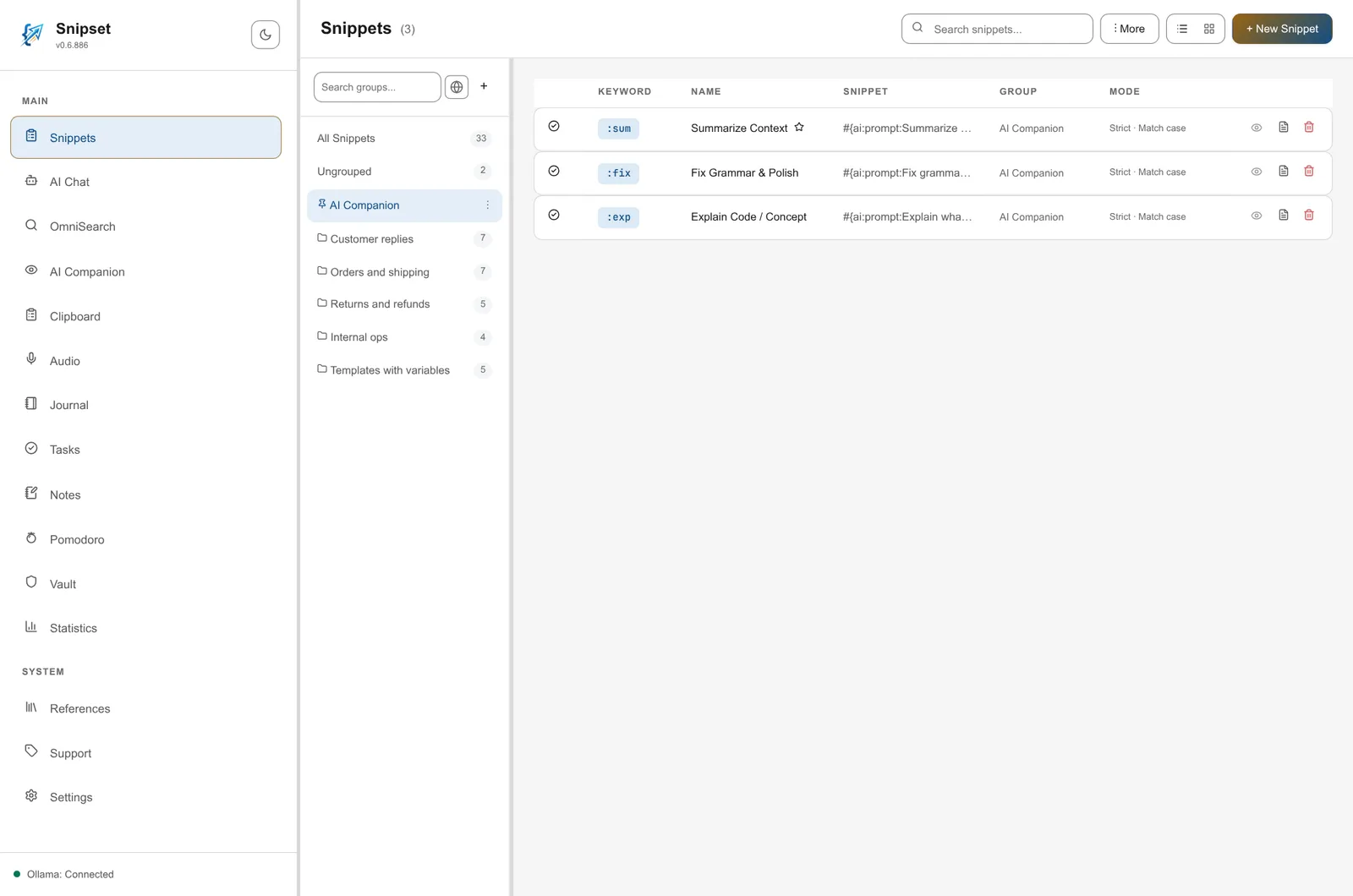
The AI Companion group in Snipset ships with three default prompts: summarise, fix grammar, and explain code. They are the easiest way to start. Once you have used them a few times, you will start saving your own prompts in your custom groups, which is what Modules 07 and 08 prepare you for.
What is next
Module 10 is the integration module. You have measured your day, picked the right work, set up your snippets, organized your library, and added AI. Module 10 puts it all together into a daily routine that actually sticks.