Productivity Tools
Menu Unduhan
Akses, cari, dan sisipkan unduhan terbaru Anda dengan cepat.
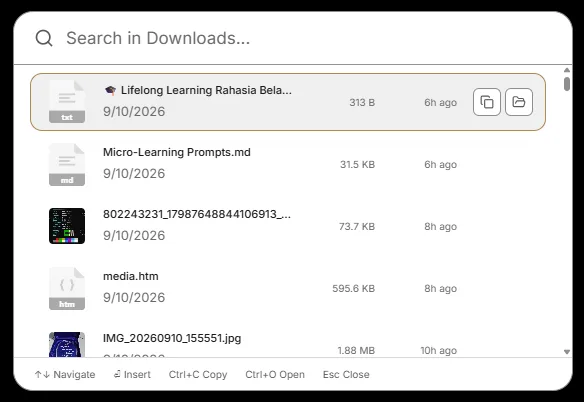
Menu Unduhan adalah Magic Menu khusus untuk unduhan terbaru Anda. Menu ini memantau folder Unduhan Anda, mengekstrak asal-usul (provenance) jika tersedia, dan memungkinkan Anda menempelkan jalur file atau membuka lokasi secara instan.
Membuka
- Tekan
Ctrl+Shift+Ddari mana saja (default,DEFAULT_DOWNLOADS_SHORTCUT). Sesuaikan di Pengaturan → Ekspansi & Pintasan → Pintasan Global. - Juga ditampilkan sebagai pintasan global Menu Unduhan di Pengaturan → Sync & Clipboard → Downloads Menu.
Apa yang Dilakukan
- Jalur Folder: Konfigurasikan melalui Pengaturan → Sync & Clipboard → Downloads Folder Path (default
~/Downloads, envDOWNLOADS_PATH). Telusuri atau Reset ke default. - Cache: Unduhan terbaru di-cache secara lokal; segarkan melalui
refresh_downloads_cache_from_settingsataufetch_downloads. - Tindakan:
copy_downloaded_path(salin jalur),open_downloaded_location(tampilkan di Explorer),insert_downloaded_file(sisipkan via snippet).
Tips
- Menu menampilkan nama file, ukuran, dan stempel waktu. URL asal-usul (jika diekstrak pada platform yang didukung) ditampilkan jika tersedia.
- Nama file yang diabaikan (mis.
.crdownload, file sementara~) difilter olehis_ignored_filename.
Terkait: Snippet lampiran file melalui Open with → Snipset menggunakan registrasi jenis file yang sama dengan Menu Unduhan. Lihat Content Types.