Core Features
Content Types
Understand the different media and content types Snipset supports, including the new Custom multi-attachment mode.

Snipset is not just a text expander. It can paste images, drop files as attachments, inject fully formatted HTML, and even deliver up to 10 mixed-media attachments in a single trigger. Each snippet has a designated "Content Type" that determines exactly what gets inserted when you fire it.
📝 Text (Default)
This is the most common type. Your snippet content is typed or pasted text.
- Supports all Template Variables.
- When triggered, Snipset simulates rapid keystrokes to inject the text. (For very long snippets, it may temporarily use the clipboard for speed.)
- Works everywhere you can type.
🖊️ RichText
RichText stores HTML-formatted content (bold, colors, links, bullet points).
- When triggered, it injects the content via the
CF_HTMLclipboard format. - Applications that support rich paste (like Microsoft Outlook, Word, or Google Docs) will perfectly preserve your formatting.
- If you trigger a RichText snippet in a plain-text app (like Windows Notepad), the raw text is pasted cleanly without the HTML tags.
- Best for: Pre-formatted email signatures or branded templates.
🖼️ Image (10MB limit)
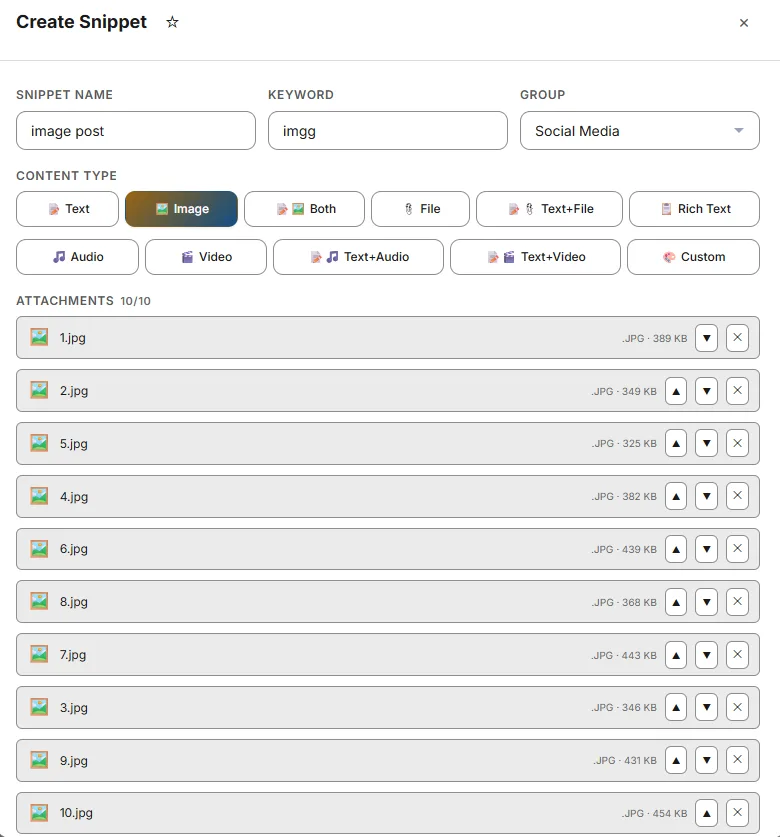
Stores a single image file directly inside the snippet.
- When triggered, the image is placed onto your system clipboard and pasted via a simulated
Ctrl+V. - Works in any app that accepts image pasting (Slack, Microsoft Teams, Notion, Word, etc.).
- Limit: Maximum 10MB per image.
🖼️ + 📝 Both (Text + Image)
Combines a text expansion with an image paste in a single keystroke.
- The text is inserted first, followed immediately by pasting the image.
- Best for: Inserting a signature line with a company logo underneath it simultaneously.
📎 File
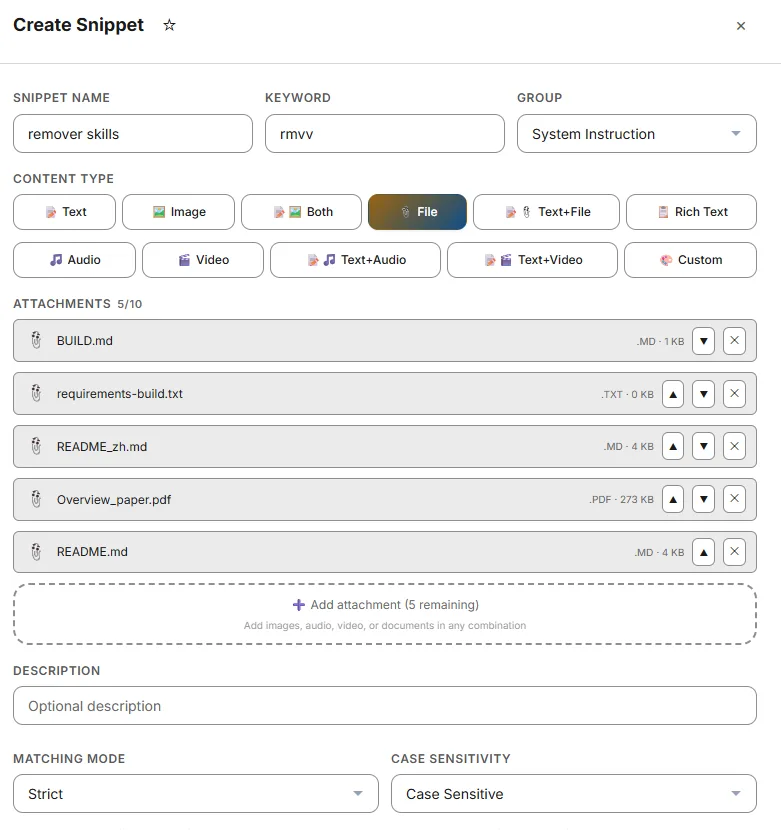
Attaches a file to the clipboard using the CF_HDROP format.
- When triggered, Snipset simulates a file "drop", exactly as if you had dragged a file from Windows Explorer into the app.
- Works in apps that accept file drops (email clients for attachments, upload forms, chat apps).
- Limit: Snipset does not enforce a strict size limit here, but the target application might reject files that are too large.
🎵 🎬 Audio and Video Types
Snipset also supports media files, offering them as raw files or paired with text.
- Audio (50MB limit): Pastes an audio file via the clipboard.
- AudioWithText (50MB limit): Inserts text first, then pastes the audio file. Great for quick-sending pre-recorded voice messages with context.
- Video (100MB limit): Pastes a video file via the clipboard.
- VideoWithText (100MB limit): Inserts text first, then pastes the video.
🎨 Custom (Multi-Attachment) New
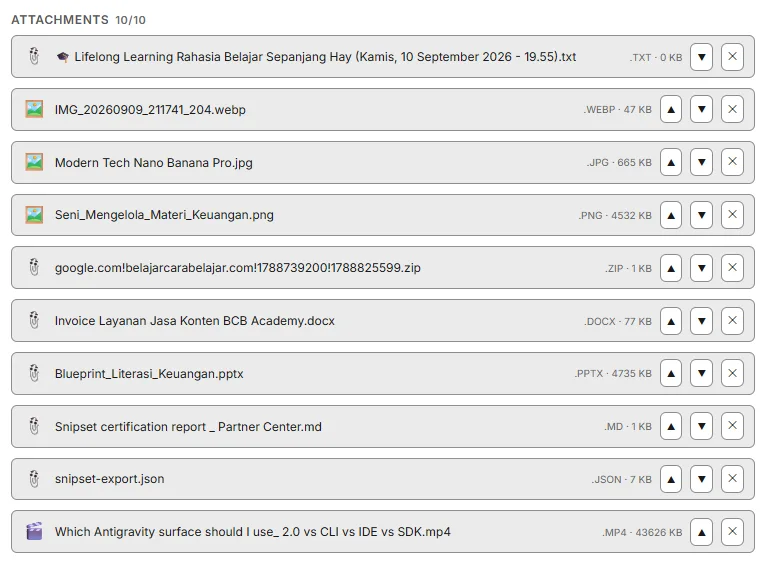
The most powerful content type. Custom lets you bundle up to 10 attachments of any type into a single snippet: images, audio, video, and documents all in one trigger.
- Attachments can be heterogeneous: mix images, audio clips, videos, and files freely, up to 10 total.
- If you add text, it is injected first. Each attachment is then delivered sequentially with a short 200ms delay between items so target applications can process each one.
- The attachment list is shown directly in the snippet editor with emoji type indicators (🖼️ 🎵 🎬 📎), individual remove buttons, and a real-time counter (e.g.
3/10). - Files are stored locally in your
AppData\Local\Snipset\attachments\{uuid}\folder on Windows, or~/.local/share/Snipset/attachments/{uuid}/on Linux, and are never uploaded anywhere. - Duplicating a Custom snippet also deep-copies the entire attachment folder so both copies are independent.
- Hard limit: Maximum 10 attachments per snippet, enforced at both the UI and backend level.
- Per-file size limit: Up to 100MB per individual attachment (same ceiling as Video).
📂 Open with Snipset New
You can now create file-attachment snippets directly from Windows Explorer. You no longer need to open Snipset first. Simply right-click any file, select Open with → Snipset, and the Snippet Editor opens with the file already attached and the correct Content Type auto-detected.
- Auto-detection: Snipset automatically selects the right Content Type based on the file extension:
Imagefor PNG/JPG,Audiofor MP3/WAV,Videofor MP4/MKV, andFilefor everything else. - Multi-file: Select multiple files in Explorer, right-click → Open with → Snipset, and a
Customsnippet is created with all files as attachments. - Works when Snipset is already running: If Snipset is already open, the file is forwarded to the existing window instead of launching a second instance.
- Registered at install: The Snipset installer automatically registers common file types (documents, images, audio, video) so Snipset appears in the "Open with" menu without manual setup.
%LocalAppData%\Programs\Snipset\snipset.exe.
After doing this once, Snipset will be remembered for that file type.
Choosing the Right Type
Use this quick reference table to decide which type fits your snippet:
| Type | What it Pastes | Best Used For | Attachments | Size Limit |
|---|---|---|---|---|
Text |
Raw characters | Code, URLs, plain messages | None | None |
RichText |
Formatted HTML | Outlook emails, Word docs | None | None |
Image |
Image file | Slack/Teams image drops | 1 | 10MB |
Both |
Text + Image | Signatures with logos | 1 | 10MB (image) |
File |
Any file format | Email attachments (PDFs, etc.) | 1 | App-dependent |
Audio |
Audio file | Voice notes, sound clips | 1 | 50MB |
AudioWithText |
Text + Audio file | Voice messages with context | 1 | 50MB |
Video |
Video file | Screen recordings, clips | 1 | 100MB |
VideoWithText |
Text + Video file | Video tutorials with context | 1 | 100MB |
Custom ✨ |
Text + mixed media | Multi-file bundles of any type | up to 10 | 100MB/file |