Productivity Tools
Downloads Menu
Quickly access, search, and insert your recent downloads.
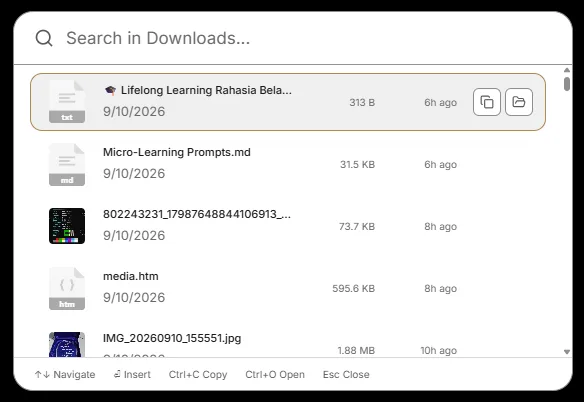
The Downloads Menu is a dedicated Magic Menu for your recent downloads. It watches your Downloads folder, extracts provenance where available, and lets you paste file paths or open locations instantly.
Opening
- Press
Ctrl+Shift+Dfrom anywhere (default,DEFAULT_DOWNLOADS_SHORTCUT). Customize under Settings → Expansion & Shortcuts → Global Shortcuts. - Also shown as Downloads Menu global shortcut in Settings → Sync & Clipboard → Downloads Menu.
What It Does
- Folder Path: Configure via Settings → Sync & Clipboard → Downloads Folder Path (default
~/Downloads, envDOWNLOADS_PATH). Browse or Reset to default. - Cache: Recent downloads are cached locally; refresh via
refresh_downloads_cache_from_settingsorfetch_downloads. - Actions:
copy_downloaded_path(copy path),open_downloaded_location(reveal in Explorer),insert_downloaded_file(insert via snippet).
Tips
- The menu shows file name, size, and timestamp. Provenance origin URL (if extracted on supported platforms) is shown where available.
- Ignored filenames (e.g.
.crdownload,~temp files) are filtered byis_ignored_filename.
Related: File-attachment snippets via Open with → Snipset use the same file-type registrations as the Downloads Menu. See Content Types.