Productivity Tools
Vault & MFA Authenticator
Manage 2FA/TOTP codes, passwords, and vault items, now unified as Vault (formerly MFA Authenticator).
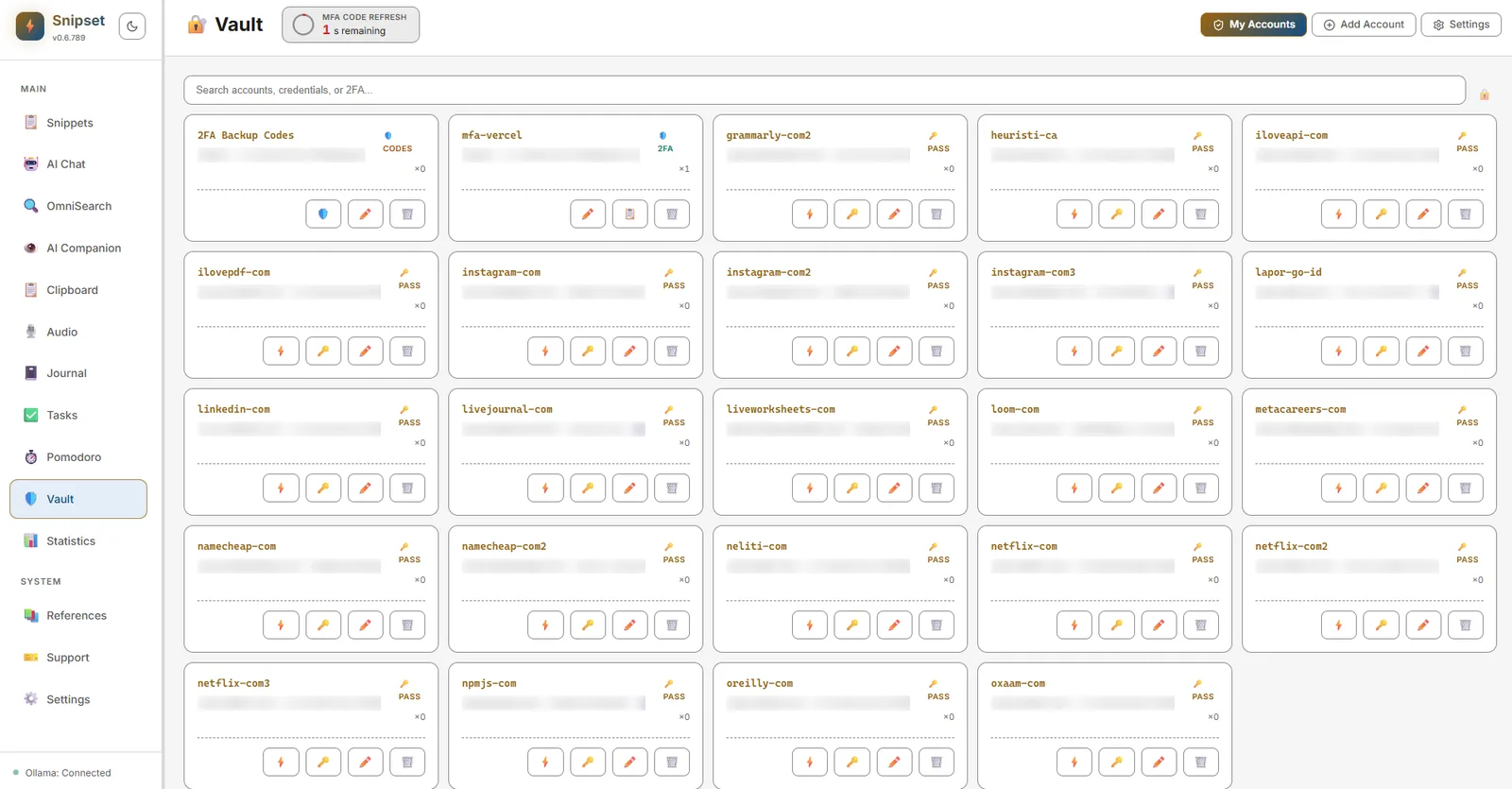
Snipset includes a fully isolated, built-in Multi-Factor Authentication (MFA) module. This allows you to generate and inject your 6-digit TOTP (Time-based One-Time Password) codes directly into any application exactly when you need them, without needing to pull out your phone.
Accessing the MFA Dashboard
To manage your accounts, open the main Snipset window and navigate to Vault in the left sidebar (previously labeled MFA). The Vault now unifies TOTP codes, passwords, secure notes, and generated passwords.
- Accounts: View all your saved MFA accounts, copy their current codes, or manage their details.
- Import: Add new accounts via QR code image, manual input, recovery backup codes, or URI.
- Settings: Synchronize your system clock with NTP servers to ensure your codes are always accurate.
Adding Accounts
You can add new accounts to your Vault through several dedicated import modes:
1. Scan QR Code Image
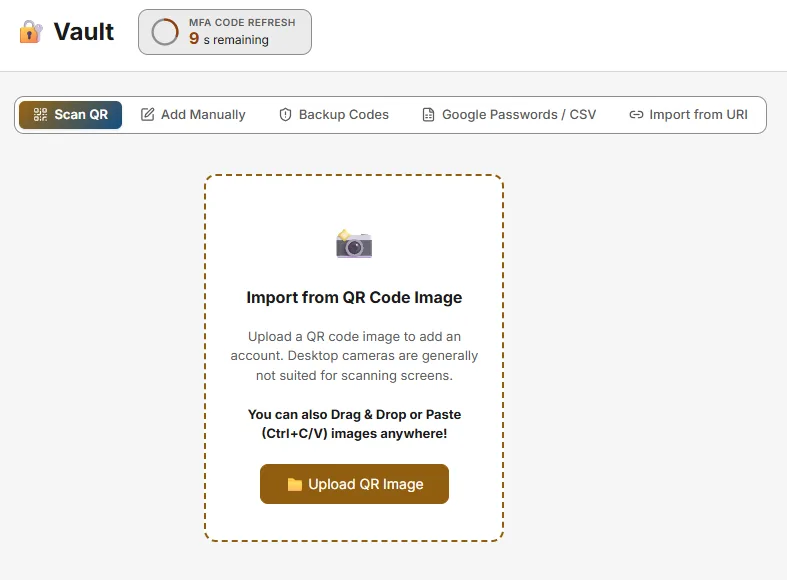
Upload a QR code screenshot or image directly. You can also drag and drop or paste (Ctrl+V) images anywhere on the screen to parse the 2FA secret automatically.
2. Manual Entry
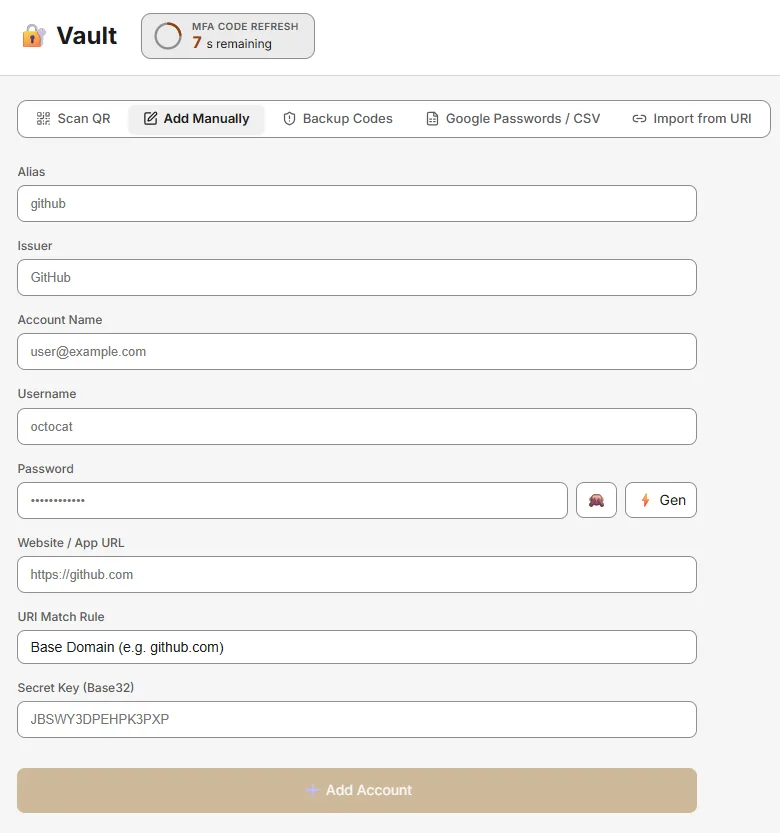
Enter the Alias (the trigger keyword you will use), Issuer, Account Name, Username, optional Password, Website URL, and the Base32 Secret Key provided by the service.
3. Backup Codes and Safe Recovery
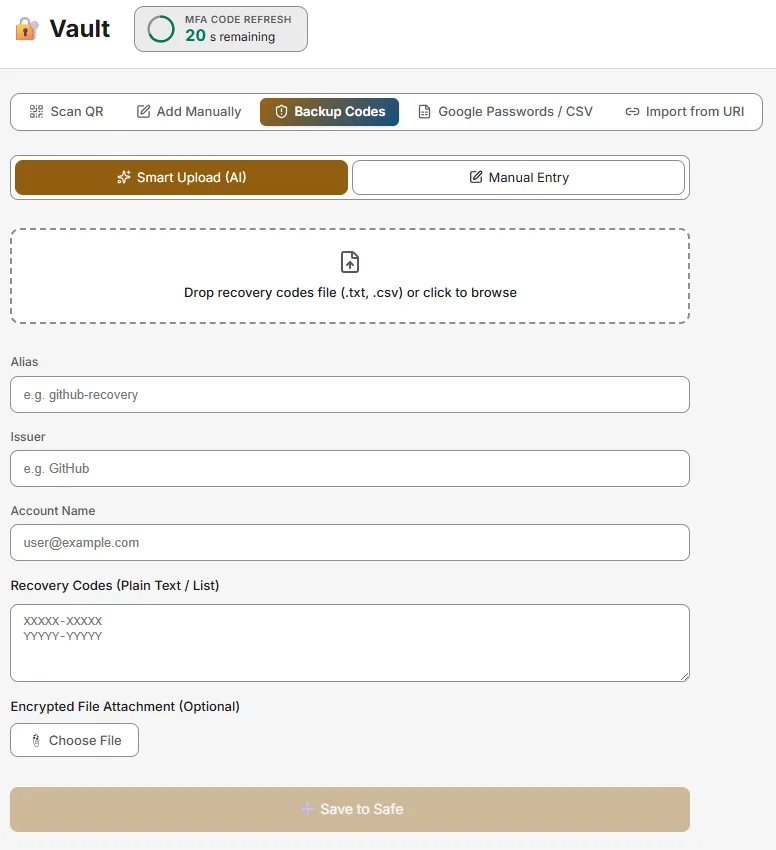
Safely archive emergency 2FA backup recovery codes. You can drop recovery code text files (.txt, .csv) to let local AI parse the credentials automatically, or paste the codes directly into the secure safe.
4. URI Import
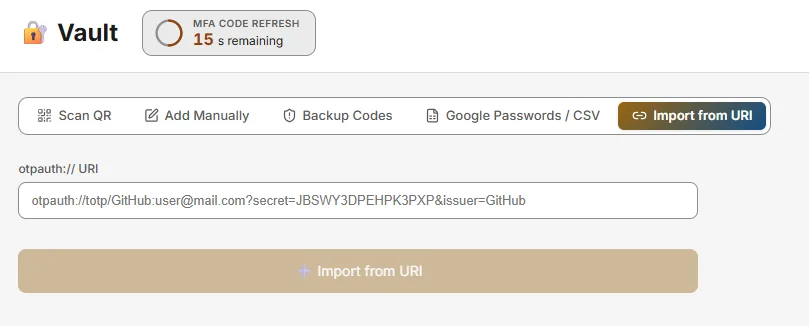
Paste a standard otpauth:// URI (often obtained from setup links or decoded QR codes) to configure an account instantly.
Note that otpauth-migration:// URIs (used when exporting from Google Authenticator) are not supported. Please use standard setup QR codes or secret keys provided by the individual services.
Triggering MFA Codes
The fastest way to use your MFA code is by typing its assigned trigger anywhere on your computer.
- Simply type
mfa-<alias>(for example,mfa-github). - Snipset will intercept the text, generate the current 6-digit code, and inject it instantly into your active window.
Magic MFA Menu
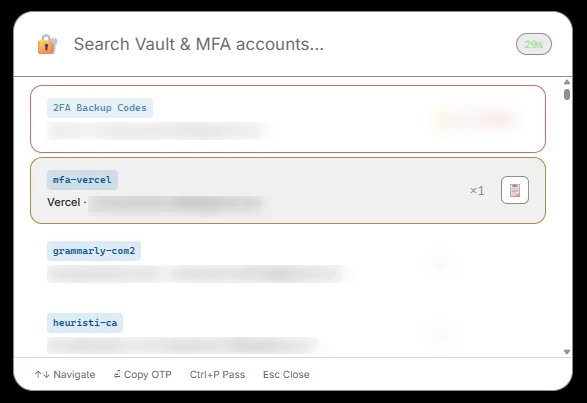
If you forget your alias, you can use the dedicated Magic MFA overlay:
- Press
Ctrl+Shift+Mfrom anywhere to open the Magic MFA menu. - Search for your account by name or issuer.
- Press
Enterto inject the code directly, orCtrl+Cto copy it to your clipboard. - Sensitive information (such as backup codes and account credentials) is automatically blurred by default for privacy until selected or hovered.
Vault Settings and Utilities
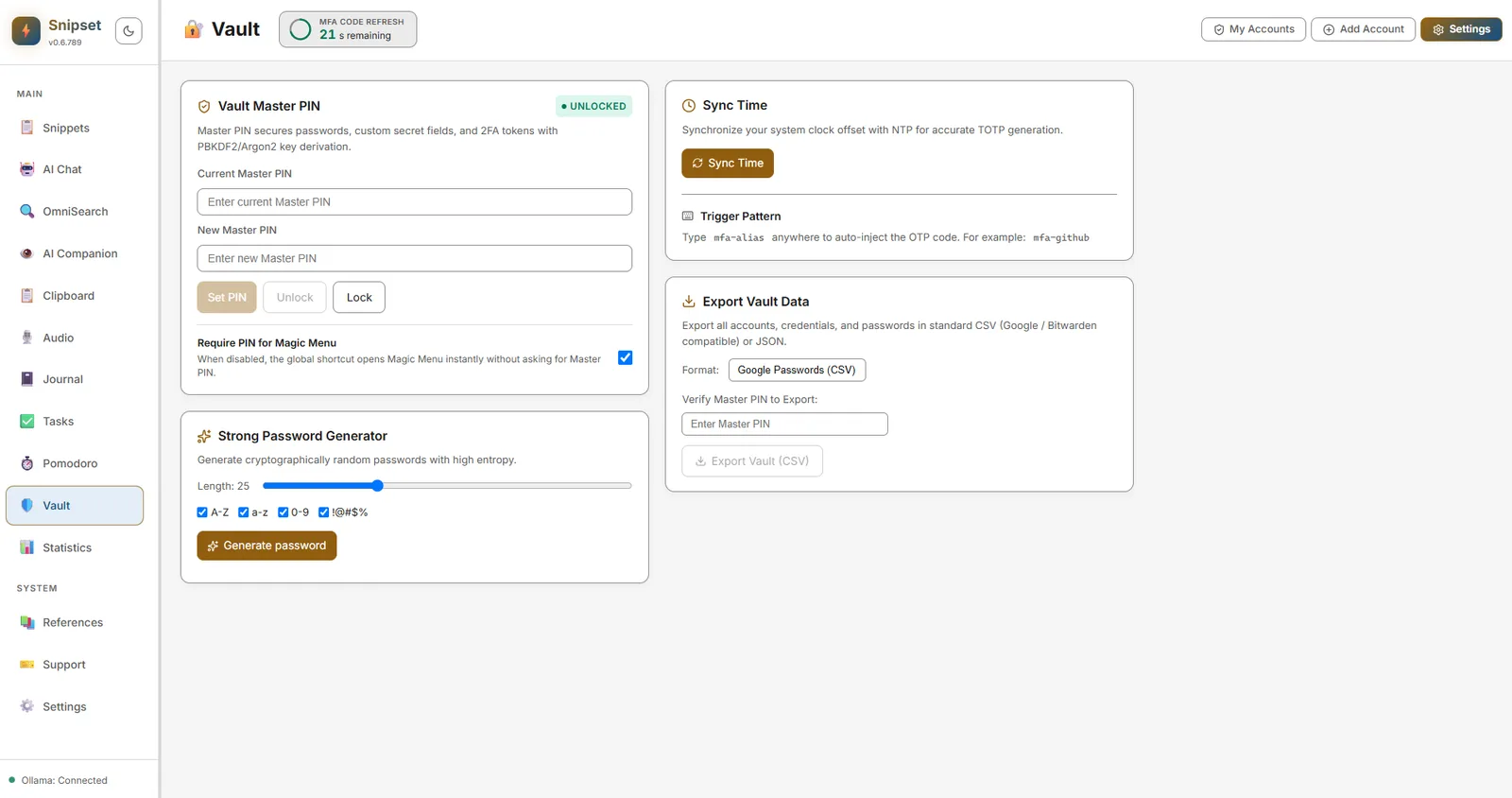
The Settings tab inside Vault provides controls for security policies, synchronization, and data portability:
- Vault Master PIN: Configure key derivation (PBKDF2/Argon2), lock or unlock the vault manually, and toggle whether the Magic Menu requires PIN authorization before displaying credentials.
- Time Synchronization: Perform on-demand NTP synchronization to correct local system clock drift and guarantee TOTP code accuracy.
- Trigger Pattern: Customize or review the inline expansion trigger format (
mfa-<alias>). - Strong Password Generator: Generate cryptographically secure passwords with custom length (up to 64 characters) and character sets (uppercase, lowercase, numbers, and symbols).
- Export Vault Data: Export vault entries and credentials to standard formats (Google Passwords CSV, Bitwarden CSV, or JSON) protected by Master PIN re-authentication.
Security and Privacy
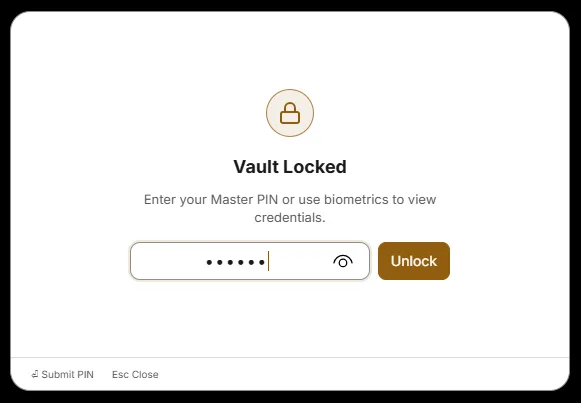
Security is the top priority for the MFA module. It is strictly isolated from the rest of Snipset.
- Encrypted Vault Storage: MFA secrets and vault items are stored in Snipset's isolated SQLite stores (
snipset-mfa/snipset-vault), with OS keychain integration and optional master PIN or biometric (Windows Hello) lock. - Offline Operation: TOTP generation is performed entirely offline. The only network request is the optional NTP time sync if your clock drifts. Time can be synced from Vault → Settings → Sync Time.