Advanced
Setting Up Ollama (Power User)
Advanced, CPU-optimized installation guide for Ollama.
Snipset includes powerful AI capabilities, such as AI Chat, AI Snippet Generation, and Semantic Search (OmniSearch). This guide covers the Advanced, CPU-optimized installation for power users who want to save disk space and don't need GPU acceleration.
Why use the CPU-Optimized version?
Ollama detects GPU availability dynamically. If the GPU libraries are removed, Ollama automatically falls back to the CPU using the ggml-cpu-*.dll library. Since Snipset uses cloud models and lightweight embedding models, you don't need local GPU processing. Removing these libraries saves up to ~1.75 GB of storage space.
Step 1: Install Custom Ollama
- Download the ZIP Version Go to Ollama GitHub Releases , find the latest version, and download the
ollama-windows-amd64.zipfile. - Extract the Folder Extract the zip file and save the folder in your Local Disk C (e.g.,
C:\ollama-windows-amd64). - Remove GPU Libraries (Storage Optimization) Open PowerShell and run the following commands to remove the GPU folders (saving ~1.75 GB): Alternative for WSL users:
Remove-Item -Recurse -Force "C:\ollama-windows-amd64\lib\ollama\cuda_v12" Remove-Item -Recurse -Force "C:\ollama-windows-amd64\lib\ollama\cuda_v13" Remove-Item -Recurse -Force "C:\ollama-windows-amd64\lib\ollama\vulkan"(The remaining size of the Ollama folder is now only about 150 MB.)rm -rf "/mnt/c/ollama-windows-amd64/lib/ollama/cuda_v12" rm -rf "/mnt/c/ollama-windows-amd64/lib/ollama/cuda_v13" rm -rf "/mnt/c/ollama-windows-amd64/lib/ollama/vulkan" - Register to Environment Variable (Path) So your computer can detect the
ollamacommand: _ Open the Start Menu, search for Environment Variables and select "Edit the system environment variables". _ Click the Environment Variables... button. _ Under System variables or User variables, find the Path variable, then click Edit... _ Click New and enter your folder path:C:\ollama-windows-amd64* Click OK on all windows to save.
Step 2: Pull the Required Models
Open your terminal and pull the desired models:
Model 1: The Chat Model
Sign in once with ollama signin, then pull the recommended cloud chat model:
Gemma 4 31B runs on Ollama Cloud: under 1 KB on disk and no local CPU, RAM, or GPU load, which suits this CPU-only setup. It needs internet. Fallback: ollama pull minimax-m2.7:cloud.
Model 2: The Embedding Model
Step 3: Verify Ollama is Running
- Open your web browser and navigate to
http://localhost:11434 - If Ollama is running correctly, you will see: "Ollama is running".
Step 4: Connect Snipset to Ollama
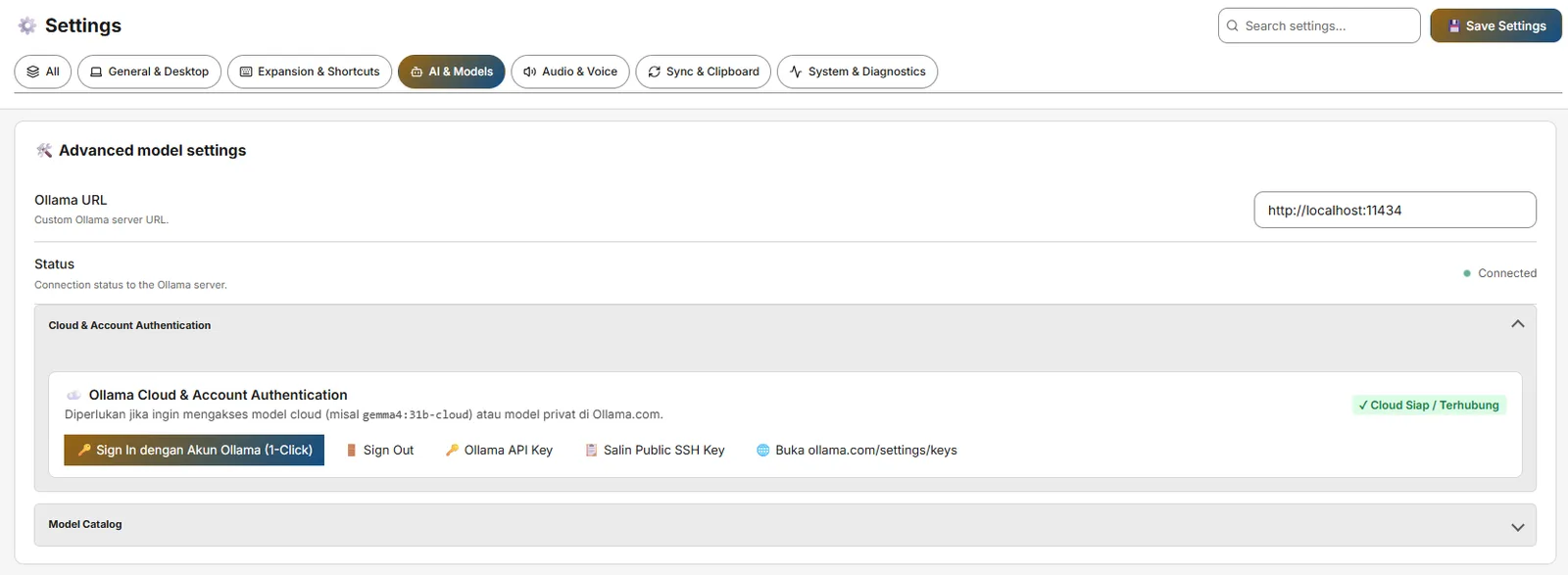
- Go to Snipset → Settings → AI Configuration tab.
- Ensure Base URL is
http://localhost:11434. - Verify the green Online indicator.
- Select your Chat Model and Embed Model from the dropdowns.