Getting Started
Installation
How to install and set up Snipset on Windows.
Getting started with Snipset is incredibly simple. Designed as a lightweight, unobtrusive desktop application, it requires minimal configuration to begin boosting your productivity.
System Requirements
- OS: Windows 10 (1809 or later) or Windows 11.
- Architecture: x64 only.
- Permissions: No administrative privileges required for basic text expansion features. (Advanced features like App Scoping may require higher permissions depending on target apps).
Download and Install
- Download the latest Windows installer (
Snipset_<version>_x64-setup.exe) from the Snipset download page by entering your license code. - Double-click the installer and follow the standard Windows setup wizard instructions.
- Once installed, launch Snipset from your Start Menu.
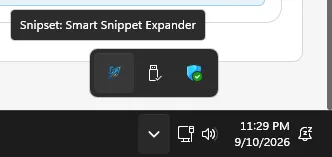
- Look for the Snipset icon in your system tray (bottom right corner of your screen). The app runs quietly in the background.
Auto-Start Configuration
To ensure Snipset is always ready when you need it, auto-start is enabled by default upon installation. This creates an entry in your Windows registry (HKCU\Run) so Snipset boots silently alongside your operating system automatically. No manual configuration is required.
File Associations New
During installation, Snipset registers itself as an "Open with" handler for file types including documents (.snipset, JSON, TXT, MD, CSV, XML, YAML, YML, TOML), images (PNG, JPG, JPEG, WEBP, SVG), audio (MP3, WAV, OGG), and video (MP4, WEBM). This means you can right-click any of these files in Windows Explorer, choose Open with → Snipset, and instantly create a new snippet with that file pre-attached.
Edge Cases & Troubleshooting
- Antivirus False Positives: Because Snipset uses a global keyboard hook to detect your snippet triggers, some overly aggressive antivirus software may incorrectly flag it as a "keylogger". If this happens, please whitelist the
snipset.exeexecutable. Snipset processes your keystrokes strictly on-device. - High DPI Scaling: If the Snipset interface appears blurry on a 4K monitor, right-click the shortcut > Properties > Compatibility > Change high DPI settings, and let the application override scaling.
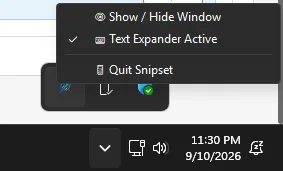
- Fully Quitting Snipset (for example before gaming): closing the main window is not enough, because Snipset keeps running in the system tray. To turn expansion off completely: 1. Click the
^chevron at the bottom-right of the taskbar to reveal hidden tray icons.
- Right-click the Snippet icon, then click Quit Snipset.
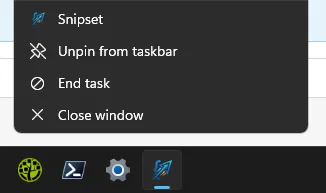
Alternative: right-click the Snipset icon on the taskbar itself and choose End task.