Core Features
Groups & Organization
Organize your snippet library using folders and groups.
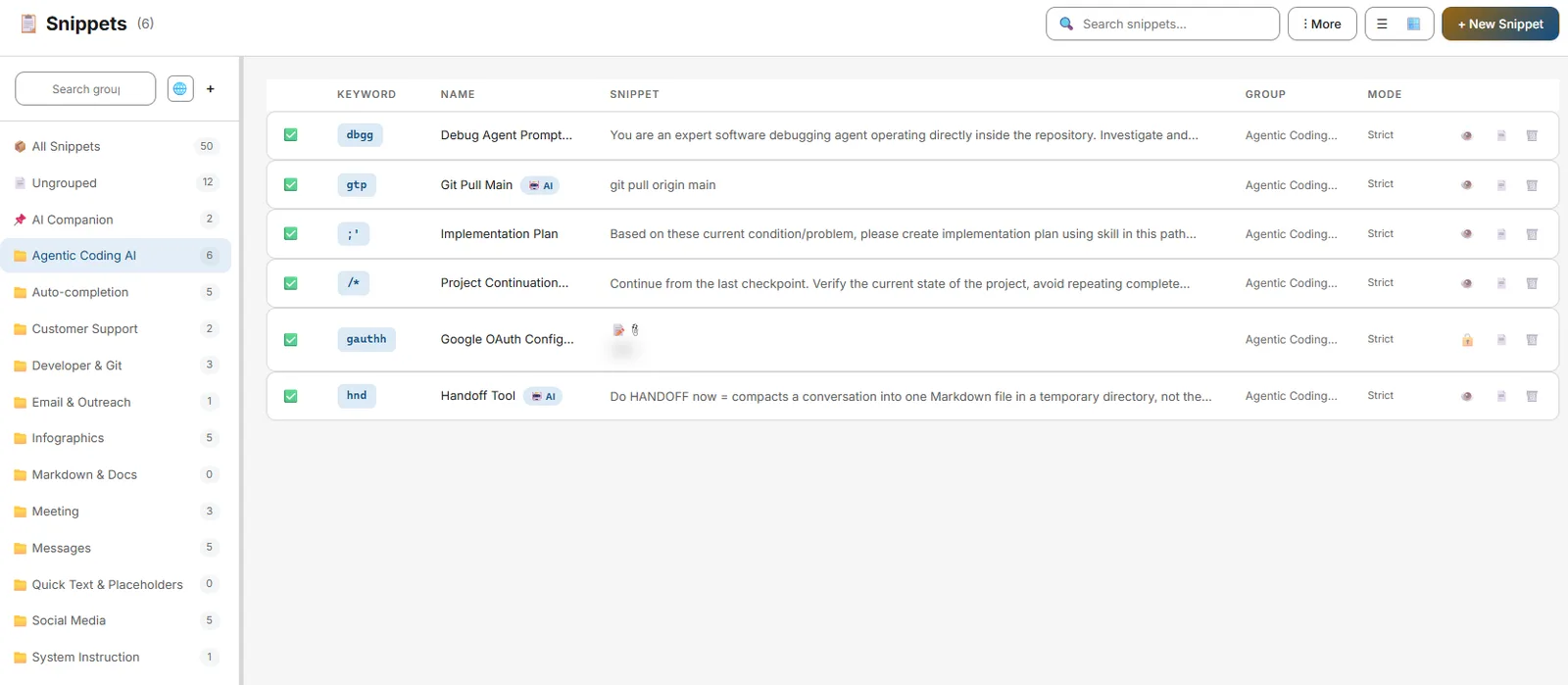
When you first start using Snipset, having a dozen snippets in one big list is manageable. But as your library grows to hundreds of templates, finding and editing them can become chaotic. Groups let you organize your snippets so everything stays tidy. Think of them as folders.
What Are Groups?
Groups appear in the left sidebar of the main Snippets page.
- Each snippet can belong to one group (or none, if you leave it in the default "All Snippets" view).
- Groups are purely organizational. Changing a snippet's group has absolutely no effect on how or when it triggers during typing.
Creating a Group
- Find the Groups Header Look at the left sidebar panel where your groups are listed. At the top, you'll see a header called "Groups".
- Click Add Click the
+(plus) icon next to the "Groups" header. - Name It Type a name for your new group (e.g., "Support Replies") and press Enter or click Create.
Assigning Snippets to a Group
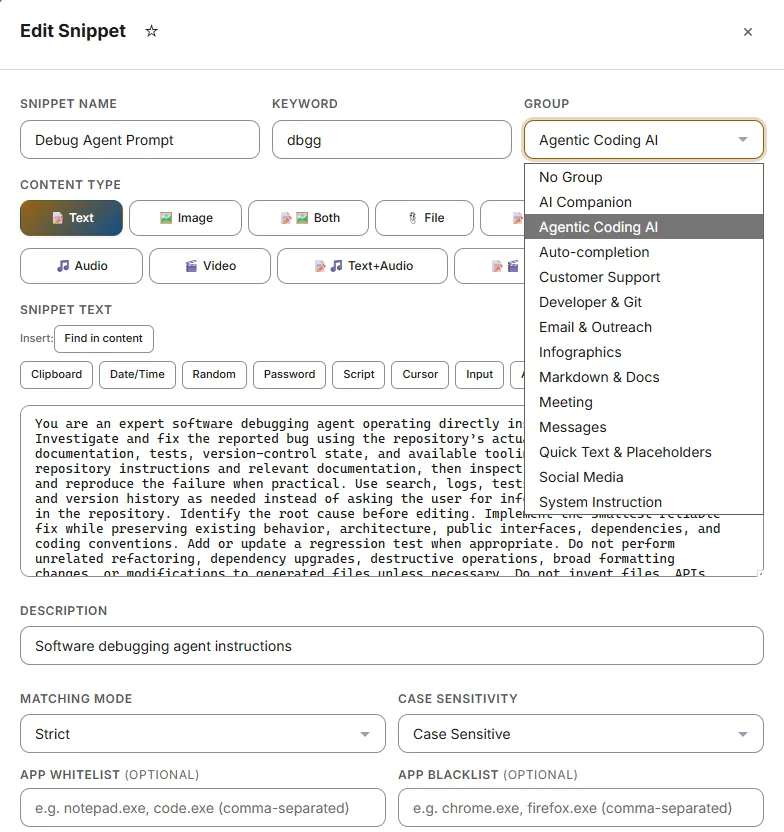
To put a snippet into a group:
- Open the Snippet Click the snippet in the list to open it in the right-side Editor panel.
- Select the Group In the Snippet Editor panel, look for the "Group" dropdown menu. Click it and select your target group from the list.
- Save The snippet is now moved to that group. You will see the group name appear as a badge on the snippet's card in the list view.
Filtering by Group
Clicking any group name in the left sidebar filters the middle list to show only snippets in that group.
To clear the filter and see your entire library again, simply click the All Snippets item at the very top of the sidebar.
Renaming and Deleting Groups
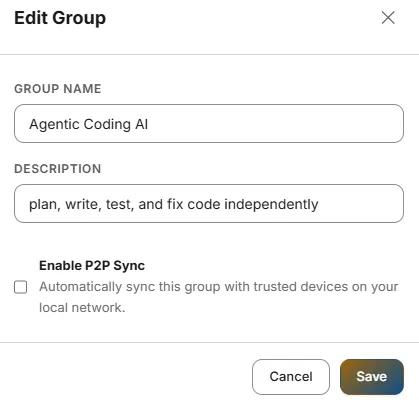
You can manage existing groups by right-clicking their names in the sidebar.
- Rename: Right-click → Rename. Type the new name and press Enter.
- Delete: Right-click → Delete. Snipset will prompt you for confirmation. Press OK to delete the group and all its snippets permanently. Press Cancel to delete the group only, keeping all your snippets safe (they simply become ungrouped and return to the "All Snippets" pool).
Organizing Strategy
Not sure how to structure your library? Here is a highly recommended baseline folder structure for new users:
    `
      📁 Work (Professional emails, meeting notes, status reports) 📁 Dev (Code templates, Git
      commit messages, CLI commands) 📁 Personal (Home address, phone number, bio, social links) 📁
      AI Companion (Templates meant to be used with the #{ai:prompt} variable)
    `