Getting Started
Setting Up Ollama
The fastest and easiest way to configure local AI features with Ollama.
Snipset includes powerful AI capabilities, such as AI Chat, AI Snippet Generation, and Semantic Search (OmniSearch). To use these features securely and privately, Snipset relies on Ollama, a tool that runs AI models on your computer or through Ollama Cloud for hybrid models.
Are you a Power User? If you want to optimize your storage and run a custom
CPU-only version of Ollama without GPU libraries, see our
Advanced Power User Guide.
Step 1: Install Ollama (Easiest Method)
- Download the Installer Go to the official Ollama Download Page and click on the "Download for Windows" button to get the standard
.exeinstaller. - Run the Installer Double-click the downloaded
OllamaSetup.exefile and follow the standard on-screen instructions. This process is automatic and takes just a few moments.
Step 2: Verify Ollama is Running
Ollama runs silently in the background on your machine.
- Open your web browser and navigate to
http://localhost:11434 - If Ollama is running correctly, you will see a simple white page that says: "Ollama is running".
Ollama Tips: Downloading Models Using PowerShell
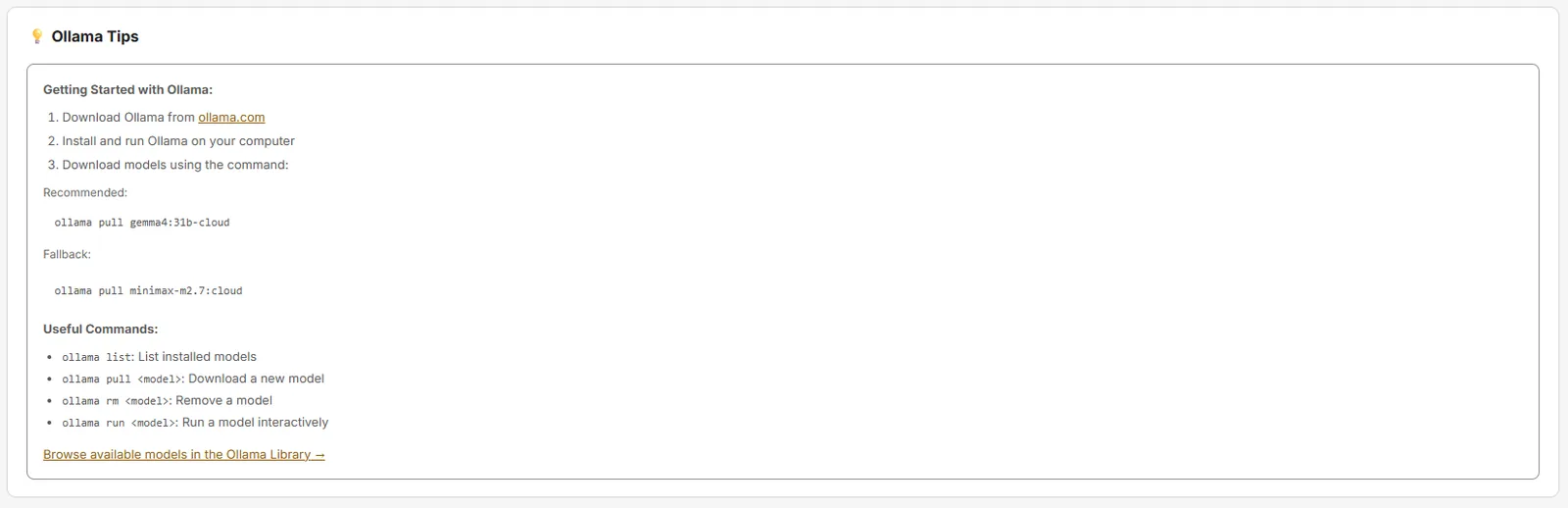 Now that Ollama is installed, you need to "pull" (download) the AI models using the PowerShell terminal. Follow these strict step-by-step instructions:
- Open PowerShell Press the
Windowskey on your keyboard, type PowerShell, and pressEnterto open the terminal window. - Sign In to Ollama The recommended chat model runs on Ollama Cloud, so sign in once. Type this command, press
Enter, and finish the sign-in in the browser window that opens (create a free Ollama account if you do not have one):ollama signin - Download the Chat Model Type the pull command for the recommended chat model and press
Enter:This is Snipset's default chat model, Gemma 4 31B on Ollama Cloud. The download is under 1 KB and it puts no load on your RAM or GPU, but it needs internet. If it is unavailable, pull the fallbackollama pull gemma4:31b-cloudminimax-m2.7:cloudinstead. - Download the Embedding Model Next, type this command and press
Enter. This downloads the 229 MB embedding model required for Semantic Search:Wait again for the "success" confirmation.ollama pull hf.co/lmstudio-community/embeddinggemma-300m-qat-GGUF - Verify Your Models Finally, type this command and press
Enterto list your downloaded models and ensure they are ready to use:You should seeollama listgemma4:31b-cloudandhf.co/lmstudio-community/embeddinggemma-300m-qat-GGUFlisted.
Step 3: Connect Snipset to Ollama
- Go to Snipset → Settings → AI & Models → AI Configuration.
- Ensure Base URL is
http://localhost:11434(orhttp://127.0.0.1:11434; both are accepted, and the app default ishttp://127.0.0.1:11434). - Look for the green Online indicator next to the URL.
- Select your Chat Model (
gemma4:31b-cloud, recommended; orllama3.2:3b, a 2.0 GB local model, for fully offline chat) and Embed Model (hf.co/lmstudio-community/embeddinggemma-300m-qat-GGUF) from the dropdowns.
Troubleshooting
Red "Offline" indicator in Snipset?
- Open Task Manager and look for
ollama.exe. If absent, start Ollama manually from your Start Menu. - Ensure the Base URL in Snipset exactly matches the port Ollama is using (default 11434).
AI shows "status 404 Not Found" with "model '...' not found"?
- The model selected in Snipset is not on your machine yet. Run
ollama listto see what you have. - Pull the recommended model with
ollama signinand thenollama pull gemma4:31b-cloud, and select it under Settings → AI & Models → AI Configuration.