Productivity Tools
Magic Menu
Access your snippets instantly with the Magic Menu overlay.
The Magic Menu is Snipset's spotlight-style overlay. It allows you to search for and insert any snippet without ever touching the Snipset main window. It is designed to be the absolute fastest way to access your snippets from anywhere on your computer.
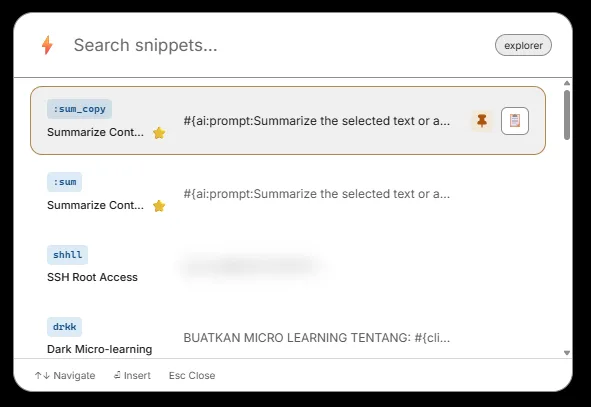
Opening Magic Menu
- Press
Ctrl+[from anywhere in Windows (default; customizable in Settings → Expansion & Shortcuts → Global Shortcuts). - The Magic Menu overlay will appear centered on your screen, hovering directly over whatever application you were currently using.
- It does not interrupt your active window. Press
Escor click outside of it to instantly dismiss it.
Searching Your Snippets
When the Magic Menu opens, the search field is automatically focused so you can start typing immediately.
- The menu searches your snippet's Keyword, Name, and Description simultaneously.
- Results appear and update in real-time as you type.
- If the search box is empty, Magic Menu automatically displays your Favorited snippets and your Most Recently Used snippets.
Context Awareness
At the very top of the Magic Menu, you will see the name of the currently active application (for example, "Google Chrome" or "Notepad"). This serves two purposes:
- It reminds you exactly where the snippet is going to be pasted when you press Enter.
- If you have App Scoping configured (whitelists/blacklists), Magic Menu will still show you all your snippets. However, if you select a snippet that is restricted from running in the currently active app, it will not trigger.
Keyboard Navigation
| Key | Action |
|---|---|
| `↑` / `↓` | Move the selection up or down through the results list. |
| `Enter` | Insert the currently selected snippet directly into the active application. |
| `Ctrl+C` | Copy the snippet's content to your clipboard without inserting it. |
| `Esc` | Close the Magic Menu without taking any action. |
Result Ordering
When you search, results are primarily ordered by relevance to your text. When the search is empty, the default order is: Favorited snippets first, then Most Recently Used snippets. Favorited items are always pinned to the top so your core snippets are instantly reachable.
Clipboard Magic Menu (Ctrl+])
Snipset includes a second Magic Menu dedicated entirely to your Clipboard History.
- Press
Ctrl+]from anywhere (default). This was previously documented asCtrl+Shift+V.Ctrl+Shift+Vis now the Paste Queue shortcut. - This opens an overlay showing your recently copied text and images.
- Keyboard navigation works exactly the same way. Selecting an entry pastes it directly into your active app.
Paste Queue (Ctrl+Shift+V)
Need to paste several clipboard items in sequence? The Paste Queue (Ctrl+Shift+V) lets you queue multiple clipboard entries and paste them one-by-one with repeated presses. Configure it under Settings → Expansion & Shortcuts → Global Shortcuts.