Productivity Tools
Clipboard History
Store, search, and manage your copied text and images.
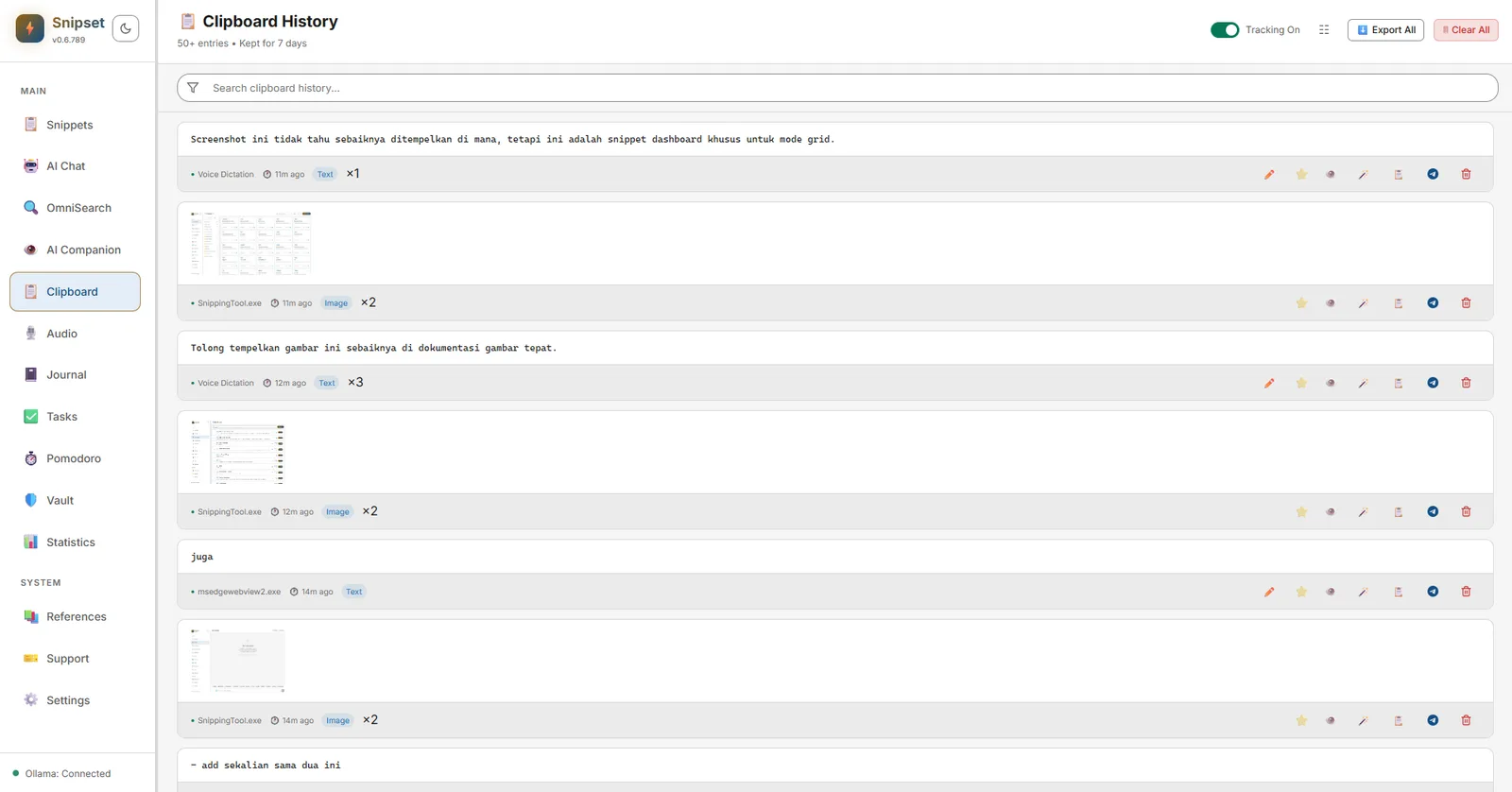
Normally, every time you copy something new, whatever was previously on your clipboard is lost forever. Snipset's Clipboard History changes this by securely recording every text and image you copy, allowing you to search and paste items you copied hours or days ago.
Clipboard History Tracking
Clipboard tracking is active automatically as long as Snipset is running.
- Snipset silently records text and images in the background as you copy them.
- You can configure the retention period and privacy settings under Settings → Sync & Clipboard → Clipboard History (Auto-deletion Interval, Blur Sensitive Content, Global Bulk Actions).
- Privacy Note: All history is stored in your local SQLite database. It is never sent to the cloud.
Opening Clipboard History
There are two ways to access your history:
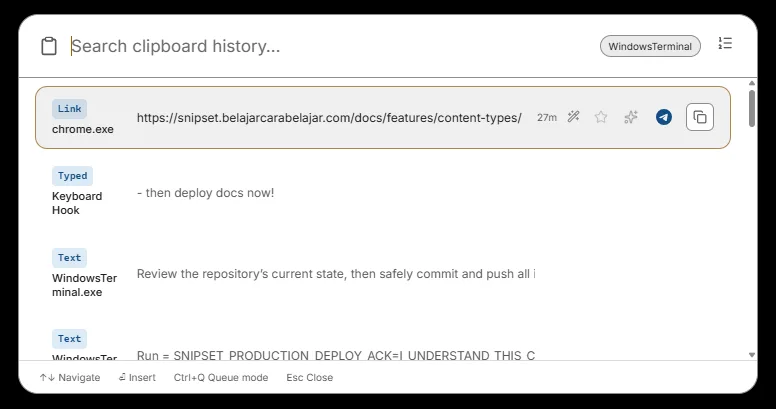
- The Fast Way: Press
Ctrl+]from anywhere (default) to open the Clipboard Magic Menu overlay. Select an item and press Enter to instantly paste it into your active window. - The Detailed Way: Open the main Snipset window and click Clipboard in the left sidebar to view the full management interface.
Browsing and Searching
In the main Clipboard page:
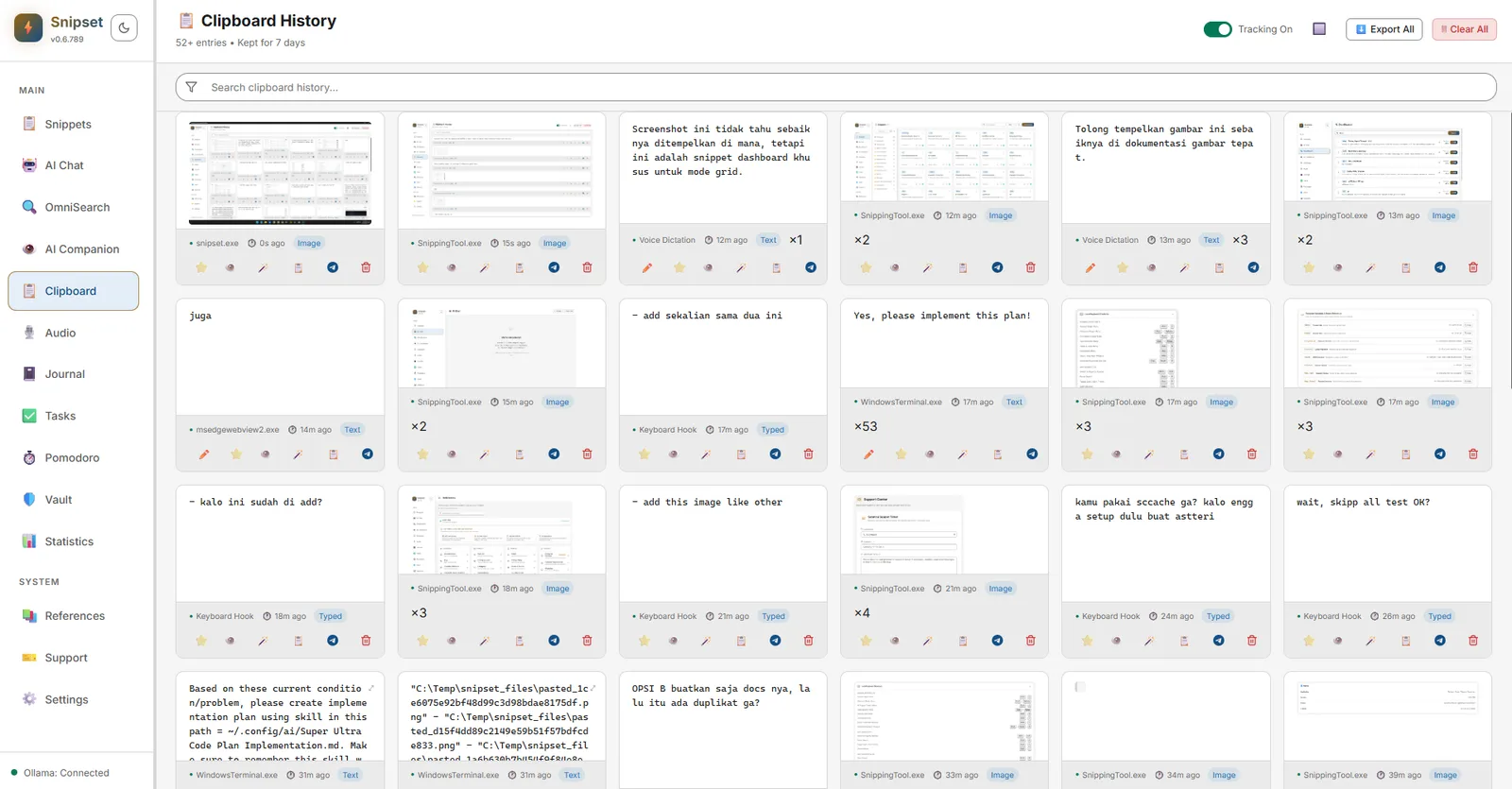
- List and Grid Views: Switch between compact row view and card-based Grid View using the layout toggle in the top-right header (next to Export All). Grid View displays items as visual cards, making it fast to inspect copied images, formatting, and snippet context.
- Entries are displayed in reverse-chronological order (the most recent copies are at the top).
- Text entries are truncated to provide a neat preview, and image entries are displayed as thumbnails.
- Use the search bar at the top to instantly filter your history by text content.
- Click any entry to copy it back to your active clipboard, ready to paste.
AI Draft: Generate a Snippet from Clipboard
If you find yourself copying the same paragraph multiple times, you can quickly convert it into a permanent snippet using AI. Open a clipboard entry's actions and choose Create Snippet / AI Draft to let Snipset generate Name, Keyword, and Content via Ollama. Review in the Snippet Editor and Save.
Requires Ollama to be running with a configured chat model (Settings → AI & Models). The generated snippet is not saved until you confirm.
Blur Sensitive Content
If you frequently share your screen during meetings, you might accidentally expose passwords, API keys, or personal data stored in your clipboard history.
- Enable this feature in Settings → Sync & Clipboard → Clipboard History → Blur Sensitive Content (also Global Bulk Actions: Blur All Items / Unblur All Items, which cover snippets and clipboard history together with a confirmation guard on unblur).
- When active, all clipboard entries are visually blurred (redacted) in the interface by default.
- Simply hover your mouse over an entry to temporarily reveal it.
Exporting History
You can back up your clipboard data or export it for external use:
- Click the Export All button on the Clipboard page.
- Snipset generates a
.txtfile containing all text entries, separated by timestamps. - Image entries are saved into a companion
images/folder in the same directory you choose.
Retention Settings & Clearing Data
To prevent your database from growing indefinitely, Snipset automatically cleans up old entries.
- Go to Settings → Sync & Clipboard → Clipboard History → Auto-deletion Interval.
- Choose how long to keep data: 1 day, 7 days, 1 to 11 months, or 1 year.
- Entries older than your selected period are automatically deleted every time the app starts.
- To manually wipe everything immediately, click the Clear All button on the main Clipboard page.