AI Integration
AI Chat: Private Local Assistant
Use Snipset's built-in AI chat to rewrite snippets, generate content, and answer questions, all 100% privately on your machine with no cloud calls.
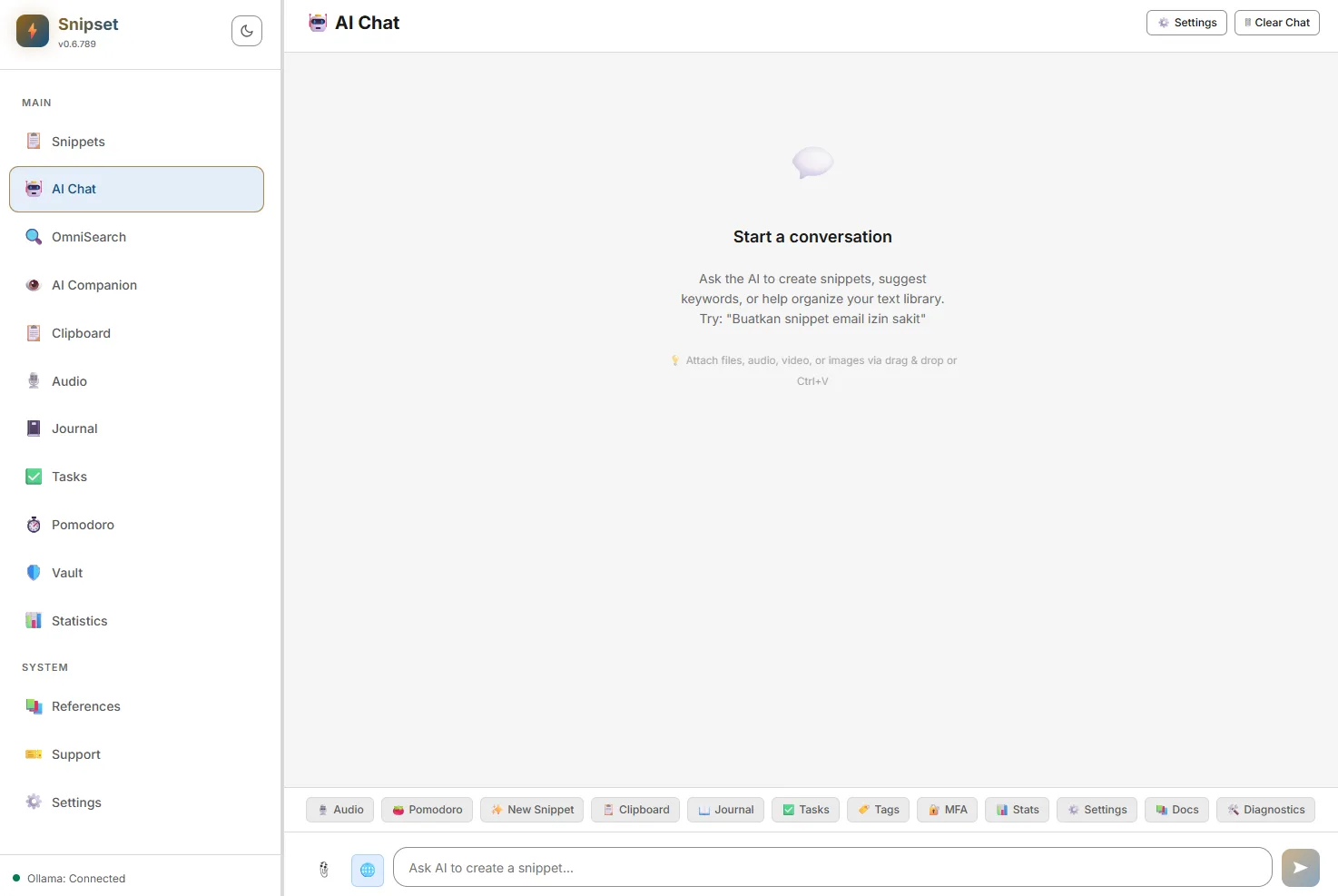
AI Chat is a fully-featured conversational assistant built directly into Snipset. Unlike web-based AI tools, it runs completely on your machine via Ollama. There are no accounts required, no subscriptions, and most importantly: your data never leaves your device.
Starting a Conversation
- Open the Chat Panel Click "AI Chat" in the left navigation sidebar of the Snipset main window, or press the dedicated keyboard shortcut.
- Send a Message Type your message in the input field at the bottom and press Enter. The AI responds with markdown-formatted text (headers, lists, code blocks, bold/italic all render correctly).
- Multi-turn Context Continue the conversation in the same thread. The AI remembers context from earlier in the same session, allowing you to ask follow-up questions.
Attaching Files
You can attach files to your message for the AI to analyze. There are three ways to do this: Drag & Drop from Explorer, Paste a copied file ( Ctrl+V), or click the 📎 File Picker icon next to the input field.
| File Type | What the AI Can Do |
|---|---|
| Images (JPG, PNG, WEBP) | The AI can describe the image, analyze its contents, or extract text (OCR). |
| Audio (MP3, WAV, M4A) | The AI can transcribe the spoken words and summarize the audio content. |
| Video (MP4, MOV) | The AI analyzes the visual content frame-by-frame. |
| Text & Code (.txt, .md, .py, .js) | The AI reads the raw content, allowing you to ask questions about code or documents. |
Chat Settings
Click the ⚙ gear icon at the top of the chat panel to open Chat Settings.
- System Prompt: A persistent instruction that shapes the AI's behavior across all conversations. For example: "Always respond in Indonesian" or "You are a coding assistant who prefers TypeScript."
- Temperature (0.0–2.0): Controls randomness. A lower number (e.g., 0.2) makes the AI more predictable and focused. A higher number (e.g., 1.5) makes it more creative but potentially less accurate. Default is ~0.7.
- Top P (0.0–1.0): Nucleus sampling. Controls how many possible next words the AI considers. Lower means more focused. Default is ~0.9.
Saving an AI Response as a Snippet
If the AI generates a perfect response that you want to reuse later (like an email template or a bash script), you can instantly save it to your library.
- Hover over the AI's message bubble.
- Click the "Save Snippet" button that appears.
- The Snippet Editor will open, pre-filled with the AI's response as the content. Just add a keyword and hit Save.
Chat History
Every conversation is automatically saved to your local database. Previous sessions appear in the left panel of the Chat interface, organized by date. Click any past session to resume it, or right-click to delete it.