Productivity Tools
OmniSearch
Use AI semantic search to find snippets by meaning, not just exact words.
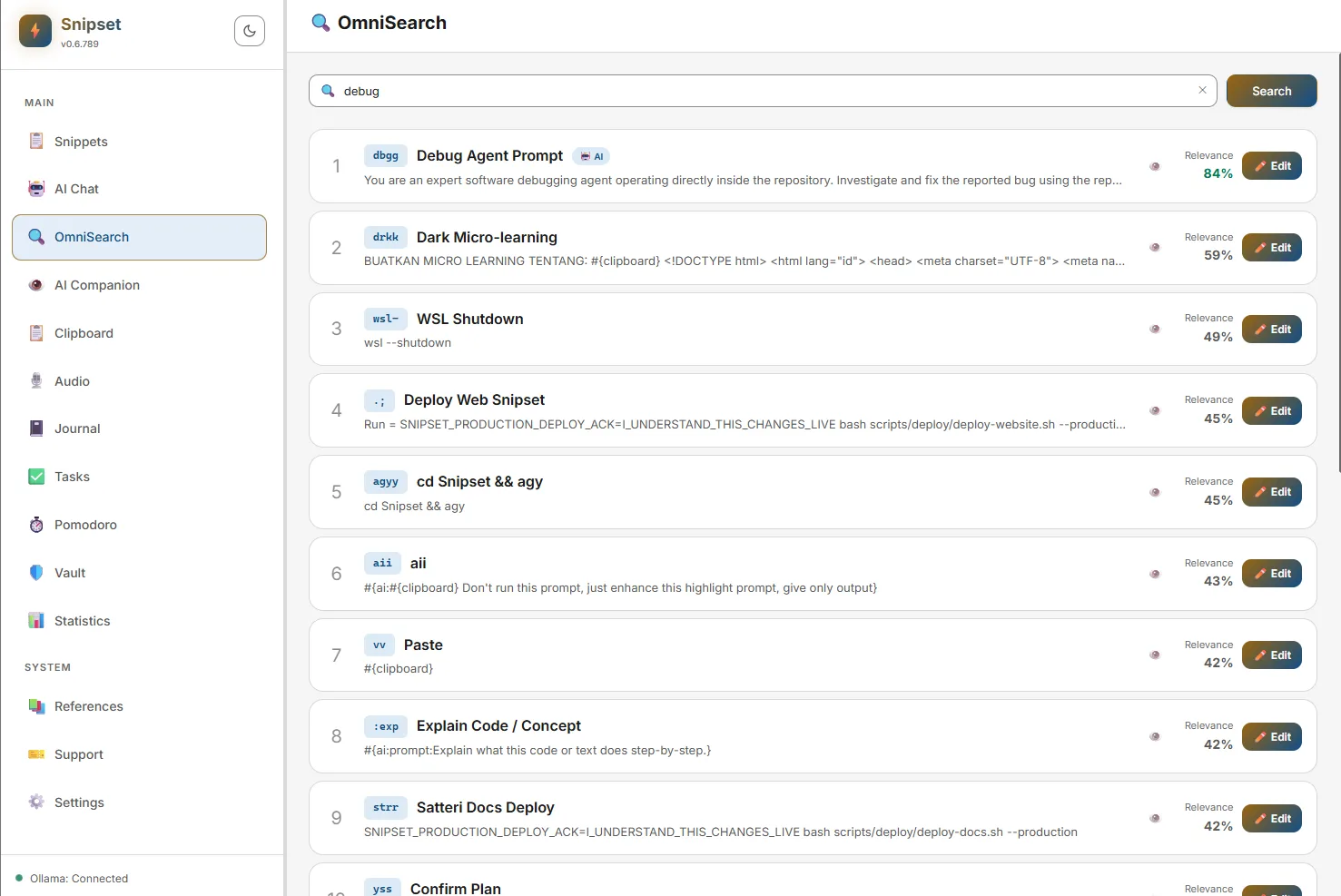
Regular search looks for exact text matches. OmniSearch understands meaning. If you search for "follow up with a client", OmniSearch can find your "Check-in email" snippet, even if the exact words "follow up" don't appear anywhere in the snippet's content.
What Are Embeddings?
OmniSearch works by converting every snippet into a "vector embedding", a long list of numbers that mathematically represents the meaning of the text.
- When you perform a search, your search query is also converted into an embedding.
- Snipset then compares the numbers mathematically to find snippets with similar meanings.
- This translation is done locally on your computer by the embedding model via Ollama (for example
hf.co/lmstudio-community/embeddinggemma-300m-qat-GGUF). Nothing is sent to the cloud.
Requirements
Before you can use OmniSearch, ensure you have completed these steps:
- Install Ollama and pull the embedding model:
ollama pull hf.co/lmstudio-community/embeddinggemma-300m-qat-GGUF(see Getting Started → Setting Up Ollama). - In Snipset, go to Settings → AI & Models → AI Configuration and confirm Online status and that the Embed Model is set to the embedding model you pulled above.
- Run the initial Embedding Sync (next section). Until embeddings exist, OmniSearch falls back to keyword search and shows "Ollama offline: Semantic search disabled" if Ollama is unreachable.
Running the Embedding Sync
Before Snipset can search your library by meaning, it needs to generate an embedding for every existing snippet.
- Navigate to Settings → AI & Models → Semantic Search Sync (and/or Settings → AI Configuration) inside the main Snipset window.
- Click Start Embedding. Snipset will process each snippet one by one. A progress bar shows how many snippets have been embedded.
- Background Processing: The sync runs silently in the background. You can continue using Snipset normally.
- Pause/Resume: You can click Pause to stop the process mid-way (if you need to free up computer resources) and click Resume later.
Using OmniSearch
Once synced, you can use OmniSearch on the dedicated OmniSearch page, or by toggling the "Semantic Mode" button inside the main Snippets search bar.
- Type a natural language description of what you need (e.g., "apology for delay" or "my contact info").
- Results are ranked by Relevance Score (shown as a percentage next to each result).
- Click a result to open it in the snippet editor, or use keyboard shortcuts to insert it directly.
OmniSearch vs. Keyword Search
Here is a quick comparison of when to use which search method:
| Feature | Keyword Search | OmniSearch |
|---|---|---|
| Finds exact matches | ✅ Yes | ✅ Yes |
| Finds synonyms/concepts | ❌ No | ✅ Yes |
| Works without Ollama | ✅ Yes | ❌ No |
| Speed | Instant | ~1–2 seconds |
| Requires Syncing | ❌ No | ✅ Yes |