Core Features
Snippet Management
Learn how to create, edit, and organize your text expansion snippets.
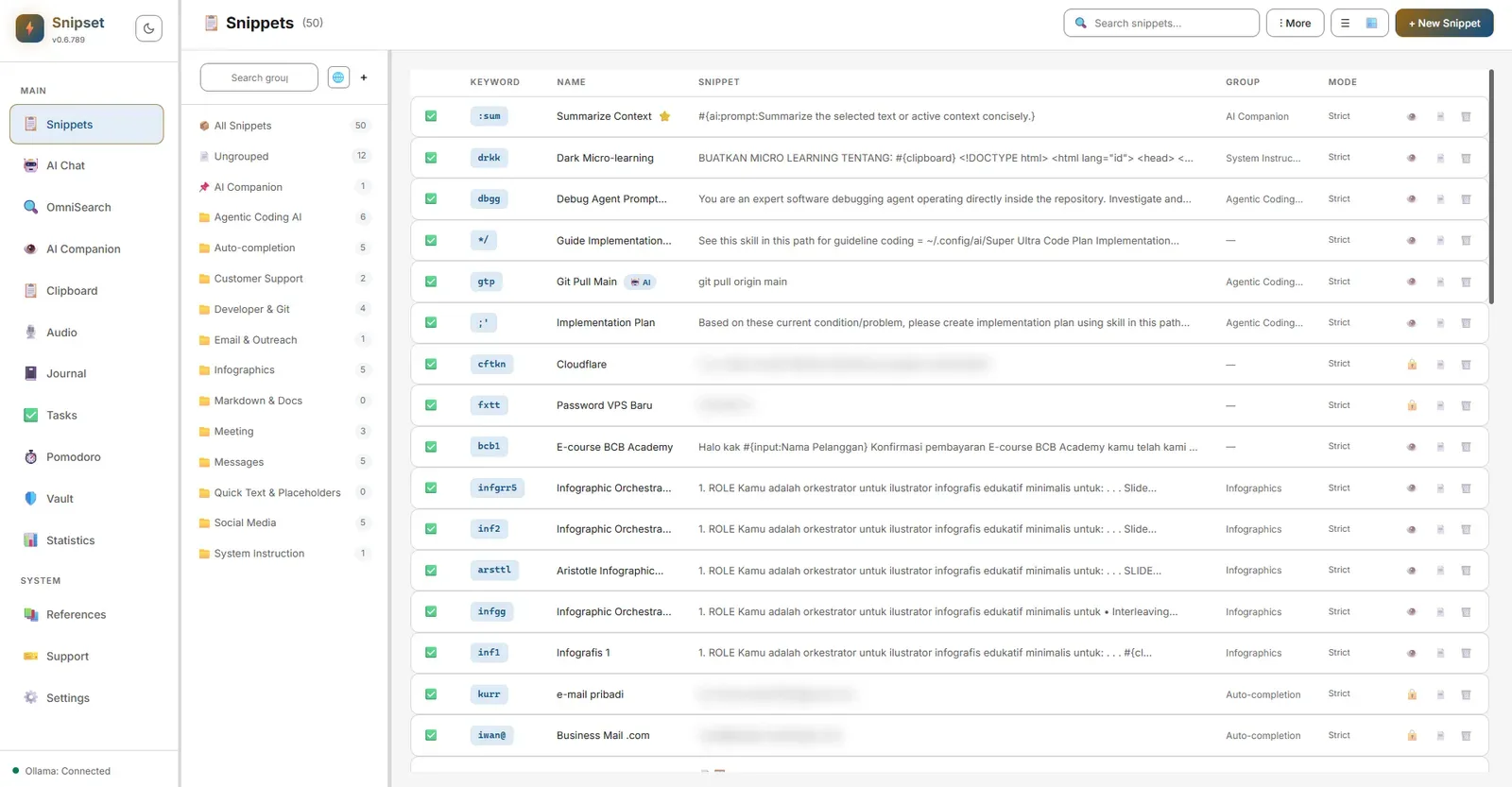
At the heart of Snipset is the Snippet Editor. This is where you create, modify, and manage all your text expansions. Understanding how a snippet is structured will help you build a more powerful library.
Anatomy of a Snippet
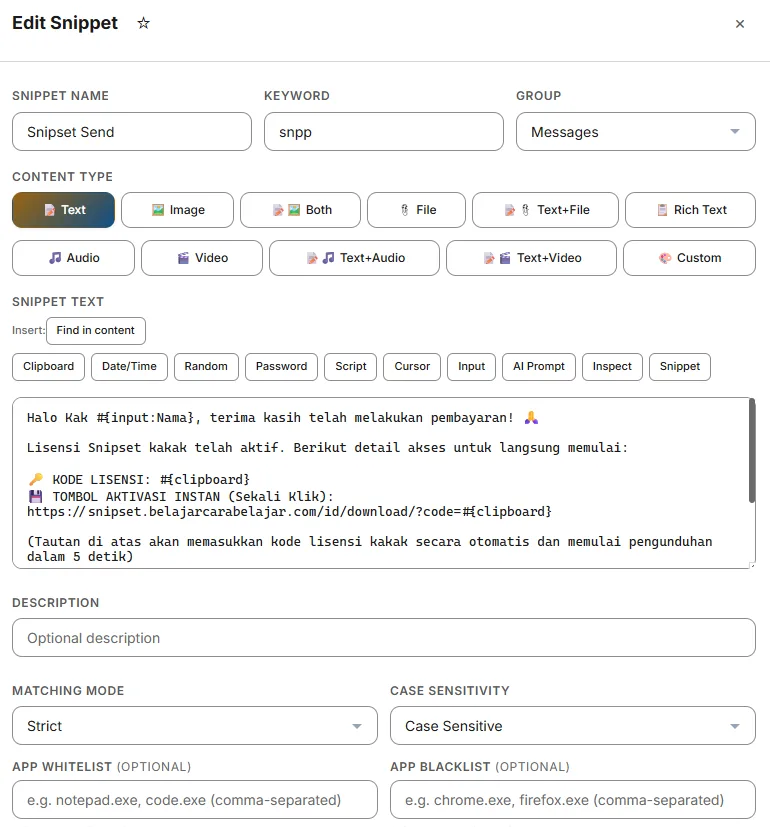
Every snippet in Snipset consists of four core fields:
- Name: This is a human-readable label visible only to you. It helps you identify the snippet in your list and search results (e.g., "Support reply: billing question").
- Keyword: The short sequence of characters you type to trigger the expansion. We strongly recommend using a prefix (like
//,;, or--) to prevent accidental triggers (e.g.,//billing). Keywords are case-insensitive by default. - Content: The actual text, image, or file that gets inserted when the snippet is triggered.
- Description (Optional): A subtitle that provides extra context. It is extremely useful for searching your snippets using the Magic Menu.
The Snippet Editor
Snipset includes a fully-featured rich text editor (powered by TipTap). Think of it as a mini word processor right inside the app.
- For Plain Text: Simply type your text. No formatting is necessary.
- For Rich Text: Use the formatting toolbar to add Bold, Italic, Underline, Bullet Lists, and Headings. When triggered, Snipset will paste the exact HTML formatting if the target application supports it (like Outlook or Word).
- Template Variables: You can insert dynamic variables directly into the editor. They will be highlighted in blue to show they are active code.
- _
#{clipboard}: Inserts the current content of your clipboard when the snippet is triggered. _#{date}: Inserts the current date. For advanced formatting (like timezones or date shifts), you can use the built-in Date & Time Builder from the editor toolbar.
Creating a Snippet
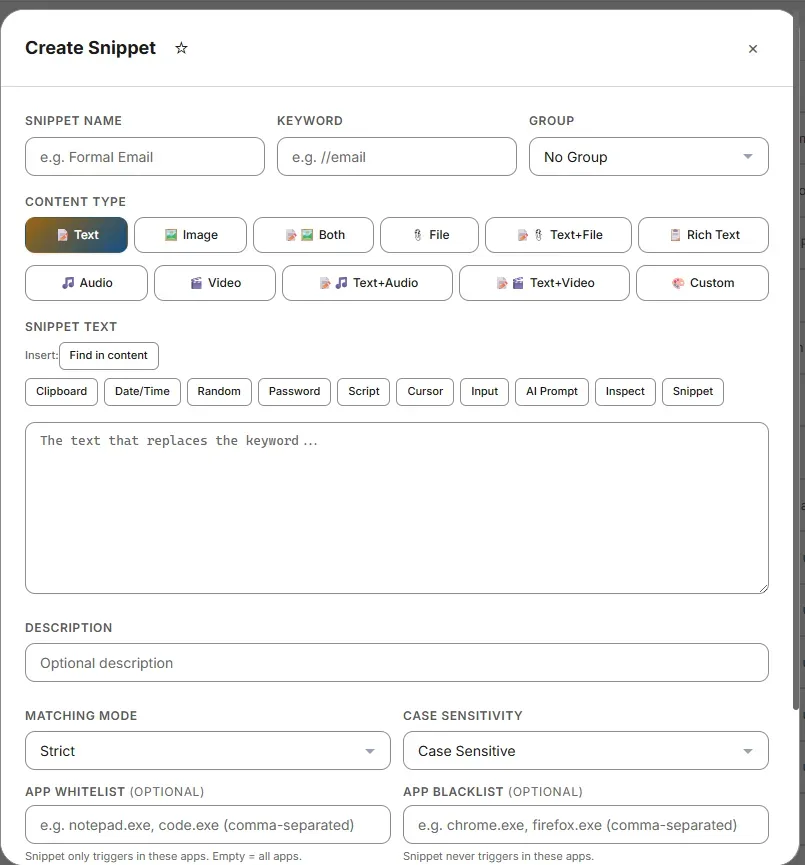
- Open the Editor Click the + New Snippet button at the top-left of the Snippets page, or use the global app shortcut
Ctrl+N. - Fill in the Data Enter the Name, Keyword, and Content. Optionally, add a Description.
- Save Click the Save button or press
Ctrl+S(orEnterif editing a group). The snippet is instantly active and ready to use anywhere.
Editing, Duplicating, and Deleting
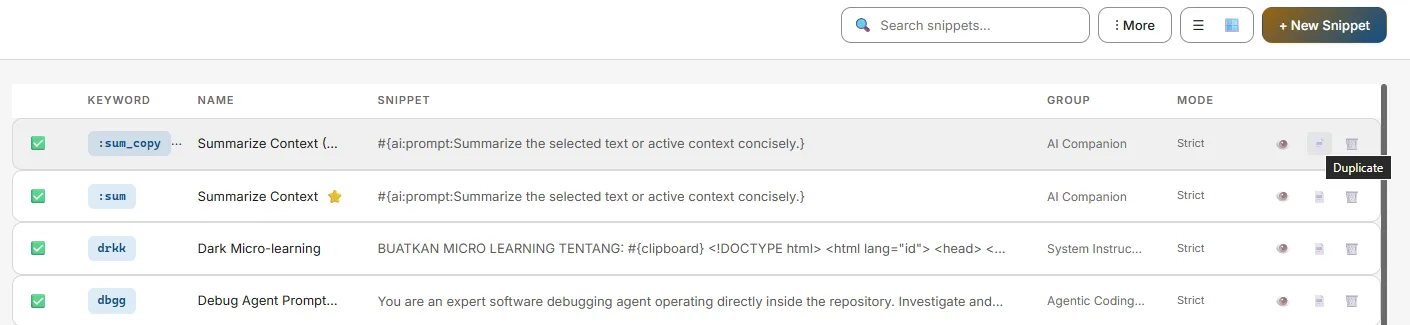
- Edit: Simply click (or double-click) any snippet in your list to open it in the editor panel. You can also click Edit Snippet directly from the AI Chat if you just saved an AI-generated template. Changes must be saved before they take effect.
- Duplicate: Right-click a snippet and select Duplicate. This creates an exact copy with "(copy)" appended to the name. This is perfect for creating slight variations of complex templates.
- Delete: Select a snippet and press the
Deletekey on your keyboard, or right-click and choose Delete. You will be prompted to confirm the deletion.
Enabling and Disabling Snippets
Sometimes you want to turn a snippet off without deleting it. You can do this by toggling the Enabled switch in the snippet editor panel.
Grid View
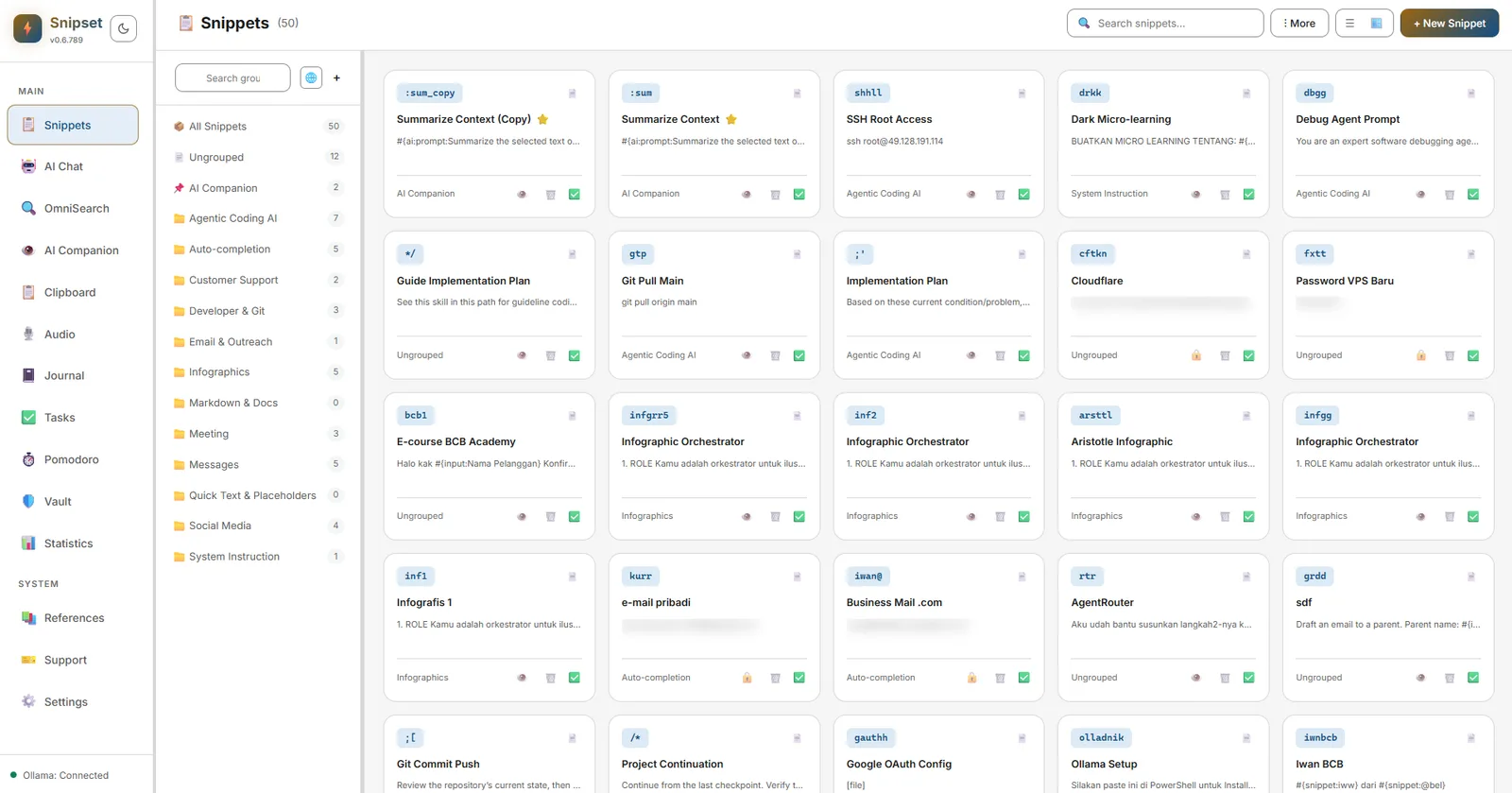
By default, the Snippets page shows your snippets in a compact list. You can switch to Grid View using the layout toggle in the top-right corner of the Snippets page (next to the search bar). Grid View displays each snippet as a card, giving you a broader overview of your snippet library at a glance. Each card shows the snippet name, keyword, a preview of the content, and its group.
Tips & Best Practices
- Use a consistent keyword prefix: Decide on a prefix system early. For example, use
;;for work snippets (;;sig) and//for personal snippets (//address). This guarantees you will never trigger a snippet while having a normal conversation. - Write good Descriptions: Don't leave the Description field empty! When you use the Magic Menu (
Ctrl+[) to search for a snippet you forgot the keyword for, Snipset relies heavily on the description to find the right result.