Productivity Tools
Notes
Write, organize, and track your notes in Snipset, with per-range statistics on the Statistics Notes tab.
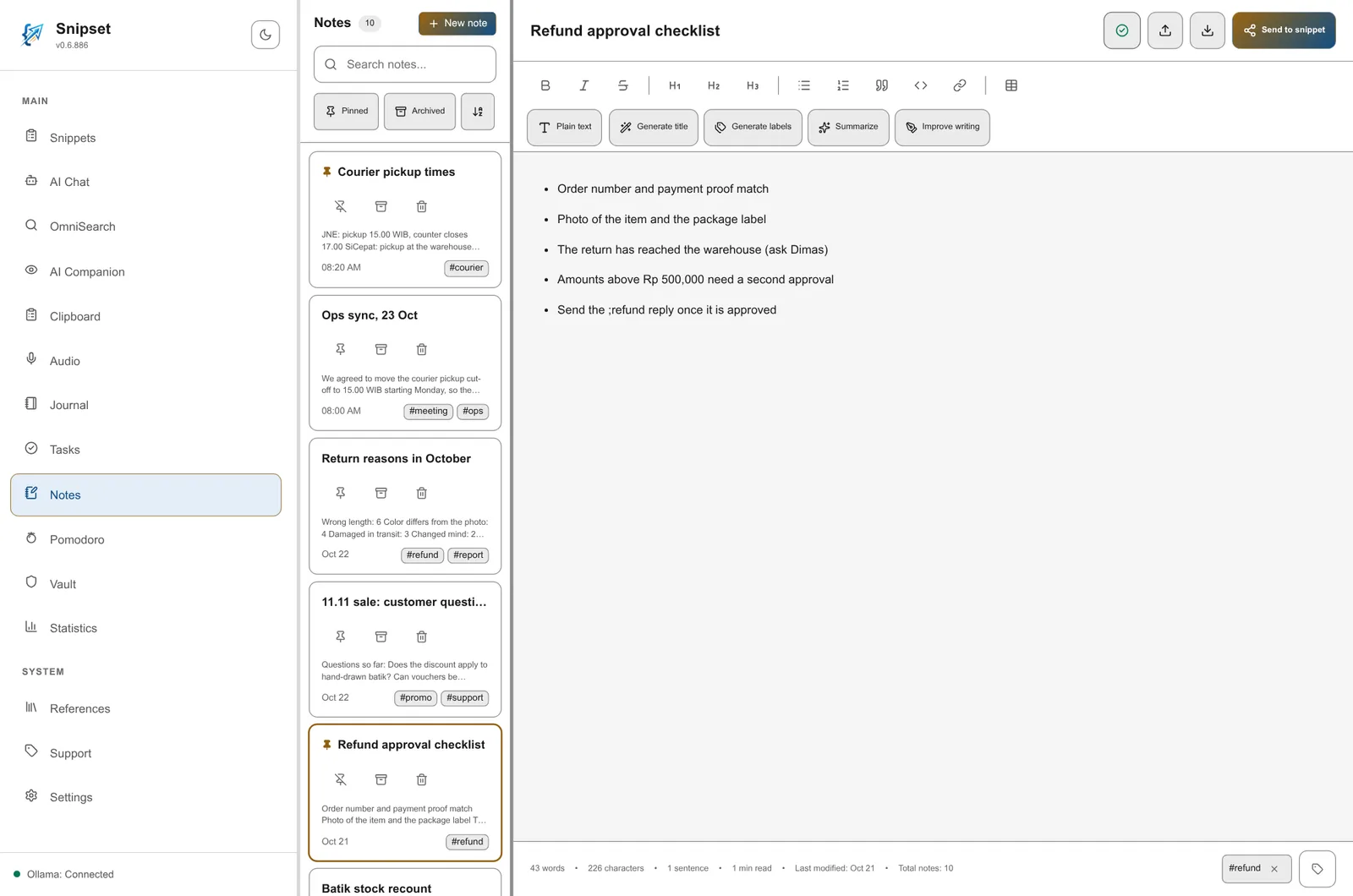
Snipset Notes gives you a fast two-pane workspace for writing and organizing notes: a sidebar for finding notes on the left, and an editor for writing on the right. Your notes are saved automatically, work offline, and feed the Statistics Notes tab described at the bottom of this page.
Sidebar
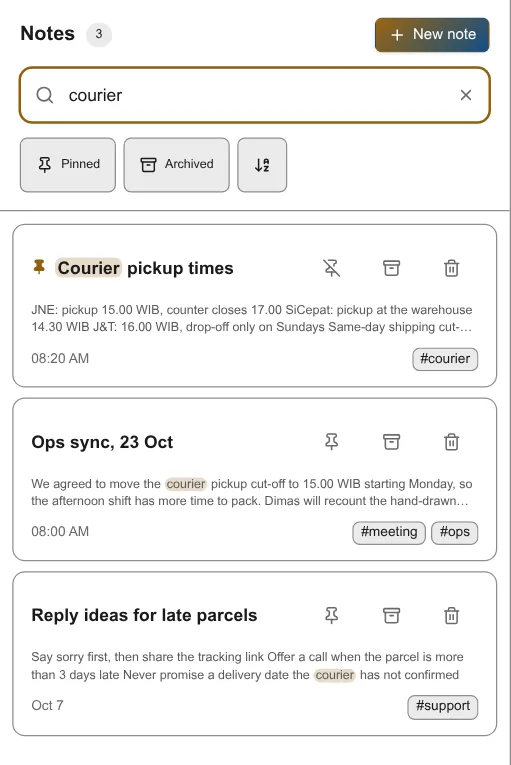
The sidebar is where you find and organize notes.
- Search: filter by title or content. Matches are highlighted in both the title and the two-line preview. A clear button appears when the search box is not empty.
- Sort: a sort button switches between newest first and oldest first, by the time each note was last edited.
- Filter pills: Pinned and Archived are two separate toggles. With both off, the list shows active (unarchived) notes.
- Label filter: the labels on each note card (up to 3 are shown) are clickable and filter the list to notes carrying that label.
- Note cards: each card shows the title (with a pin marker when pinned), a two-line content preview, the date (a time for today's notes, otherwise the date), and label badges. Pin, archive, and delete actions sit in the title row. The list loads 50 notes at a time and fetches more as you scroll near the bottom.
- States: a fresh library shows an empty state inviting you to create your first note. Loading and error states are shown inline in the sidebar.
On narrow screens the sidebar sits above the editor in a single column.
Editor
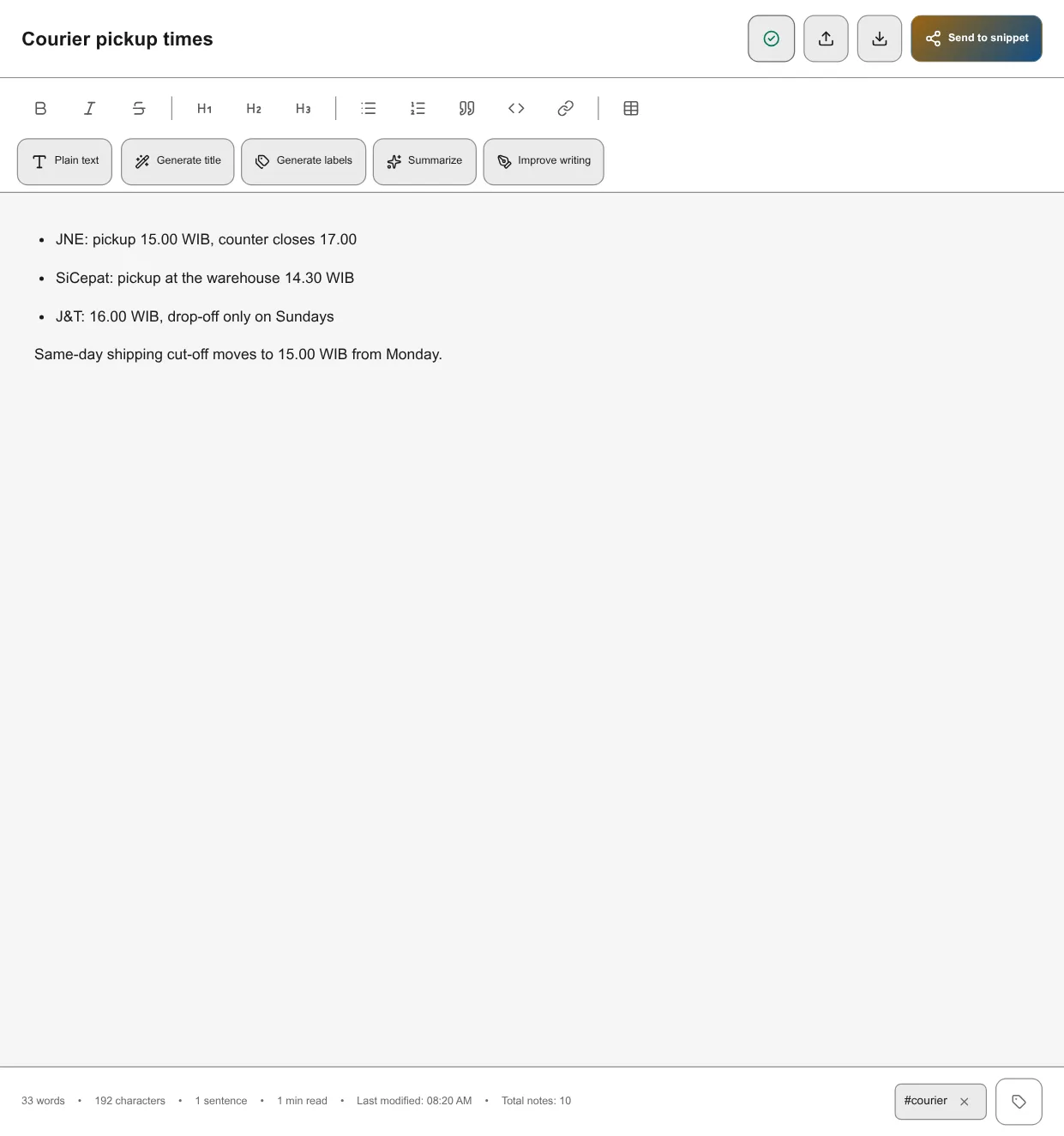
The editor pane has a header row with the title, the status badge, and the Import, Export, and Send to snippet buttons, and a tool row with the formatting toolbar (in rich-text mode), the rich-text and plain-text switch, and the AI buttons.
Plain text and rich text
You can switch between two editing modes:
- Plain-text mode: a borderless text area for fast, distraction-free writing.
- Rich-text mode: a TipTap-based editor (loaded on demand) with formatting toolbar, tables, and link support. Switching modes takes effect immediately, without a confirmation.
Your last used mode is remembered on the device.
Title and labels
- The title renders inline. Select it to edit; Enter or leaving the field saves, Escape discards the draft title.
- You can add up to 2 labels by hand with the tag button (Add manual label) in the footer. Manual labels must be non-empty, unique within the note, and at most 20 characters each.
Status indicator
A status badge in the toolbar always shows the current state, in this priority order: error, offline (Ollama is not running), generating title, generating labels, saving, and all changes saved.
Footer stats
The footer under the editor shows live counts derived from the note content: words, characters, sentences, and estimated reading time. The far end shows the last edited timestamp and the total note count.
AI actions
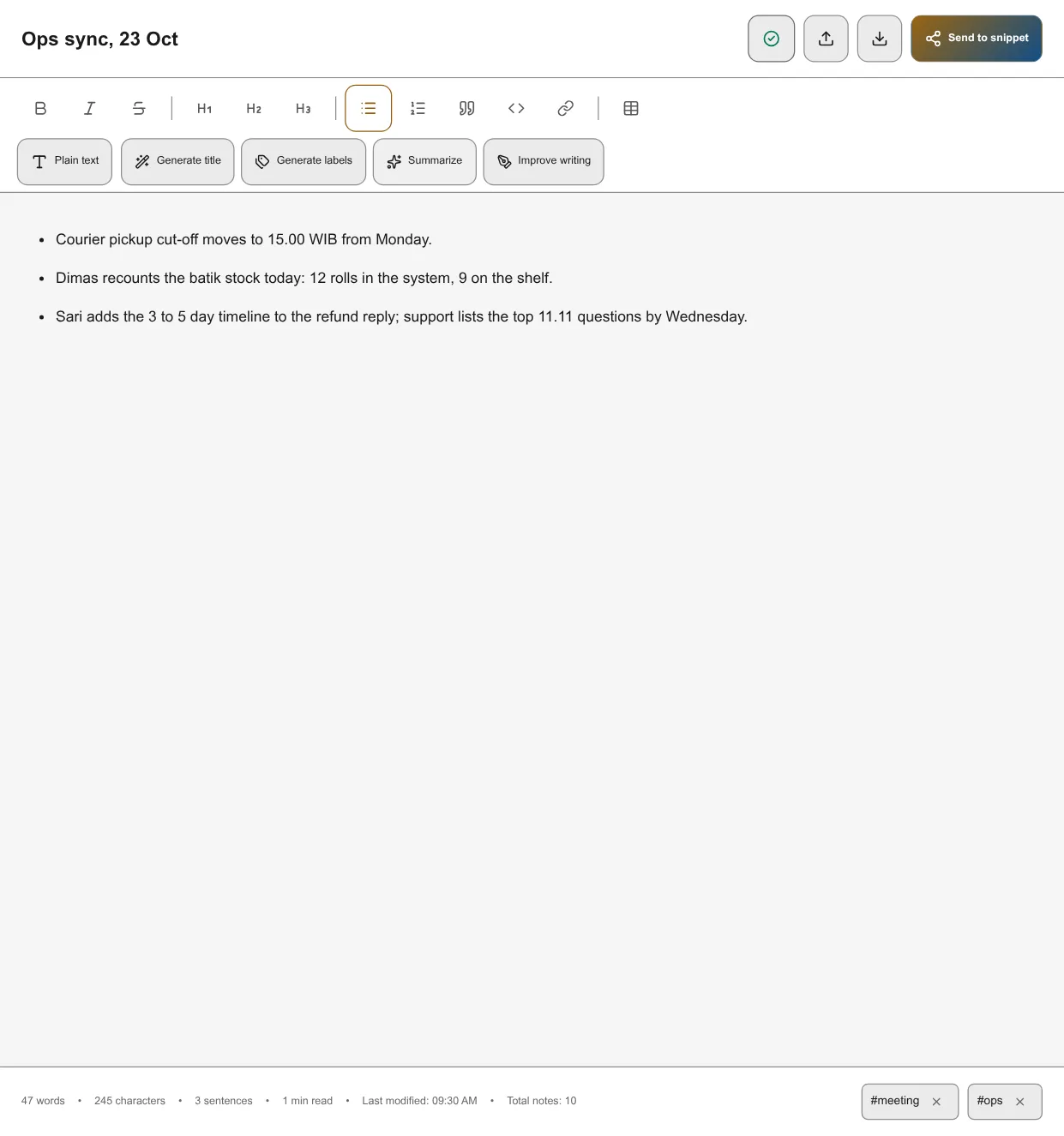
Local AI flows speed up note organization. While one flow runs, its button shows "..." and the AI buttons ignore new clicks:
- Generate title: drafts a title from the note content and replaces the current title.
- Generate labels: suggests up to 4 labels from the content and replaces the current labels with them.
- Summarize: replaces the selected text, or the whole note when nothing is selected, with a summary.
- Improve writing: improves the selected text, or the whole note when nothing is selected.
The AI actions run on Ollama. While Ollama is offline, the AI buttons are disabled and their tooltip says AI is unavailable.
Import and export

- Import: bring in text files (
.txt,.md,.markdown,.text). You can also drag and drop a file onto the editor; an overlay marks the drop target. Images are not imported. Imported text is added to the end of the current note (or at the cursor in rich-text mode) without a confirmation. - Export: save the current note to a file.
- Send to snippet: promote the whole note into a reusable snippet without retyping.
Shortcuts
All shortcuts listen on the window and are available while the Notes page is open (Ctrl on Windows and Linux, Cmd on macOS):
| Shortcut | Action |
|---|---|
Alt+A | Toggle fullscreen |
Ctrl/⌘+M | Create new note |
Ctrl/⌘+Shift+F | Toggle rich-text mode |
Ctrl/⌘+G | Generate AI title |
Ctrl/⌘+L | Generate AI labels |
Ctrl/⌘+Shift+L | Toggle manual label input |
Ctrl/⌘+O | Open file import picker |
Ctrl/⌘+E | Export current note |
Ctrl/⌘+D | Delete current note (asks for confirmation) |
Escape | Close label input when open |
Deleting a note asks for confirmation and cannot be undone.
Pinned (Featured) notes
Pinned notes are the Notes feature's lightweight highlight system. Toggling the per-note pinned boolean adds a pin marker on the title and is what the Pinned filter pill in the sidebar toolbar checks against. The feature is local to your device, never modifies the underlying note content, and works offline.
How to pin a note
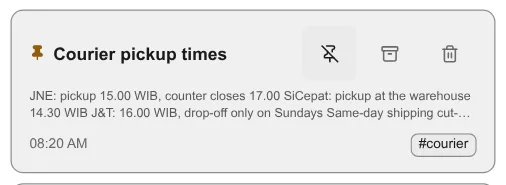
Find the note card in the sidebar. The title row carries a small Pin button alongside the Archive and Delete actions. Click the button to toggle pinned on that note; the icon swaps to its pinned variant (Pin becomes PinOff) and the card title gains a pin marker before the text. The sidebar order does not change: the list is sorted by the time each note was last edited, and pinning does not count as an edit. Click again to unpin.
The Pinned filter pill
The sidebar has two filter pills, Pinned and Archived, in a row below the search box, next to the sort button. Activating the Pinned pill narrows the list to notes whose pinned boolean is true. The pill composes additively with the other sidebar controls rather than replacing them:
- the search box, which still matches title and content inside the pinned subset,
- the sort button (newest or oldest first, by the time each note was last edited),
- the label filter from a card's label, which intersects with the pinned set when a label is also active,
- the Archived pill: turn on both pills to see archived pinned notes.
The pill is purely a view state; closing and reopening the Notes page turns it off again. No setting remembers the last active pill.
Pinned and Archived are independent
Each note carries two independent booleans, pinned and archived, so a note can live in any of the four combinations:
| Pin state | Archived state | Pin button shown | Visible by default | Visible with Pinned pill | Visible with Archived pill |
|---|---|---|---|---|---|
| Unpinned | Active | Pin | yes | no | no |
| Pinned | Active | PinOff | yes | yes | no |
| Unpinned | Archived | Pin | no | no | yes |
| Pinned | Archived | PinOff | no | with Archived also on | yes |
Because the booleans are independent, the Statistics Notes tab renders a four-quadrant Pinned vs Archived bar instead of two simple buckets. The next section covers the chart; the indirection here lets the filter pills stay independent too.
Pinned notes in the Magic Menu Recall overlay
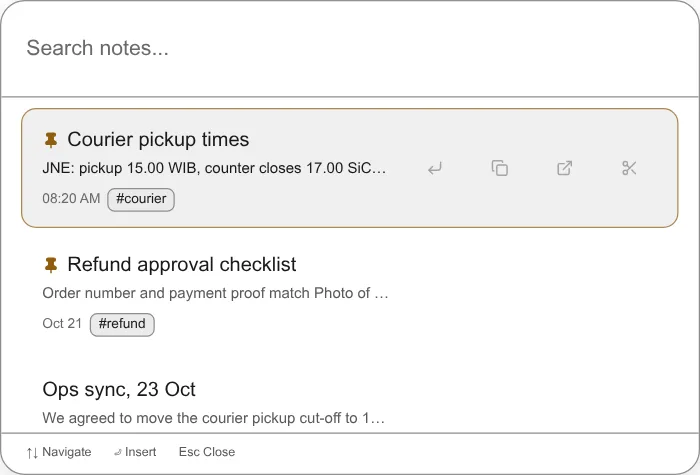
Snipset has one Notes Recall overlay (Notes Recall Menu) in the same spotlight pattern as the Snippets Magic Menu; the other notes overlay, Note Capture Menu, is an input popup, not a recall list. The recall overlay honors the pinned boolean: pinned notes float to the top of the result list inside the overlay, prefixed with a Pin icon on the title row. It has no Pinned filter pill of its own.
Follow-up: the default keyboard shortcuts that open these overlays (
Alt+Nfor the Notes input overlay,Alt+Shift+Nfor the pinned-aware Notes Recall overlay) are registered inapps/desktop/src-tauri/src/setup/shortcuts/registration.rs:14-15. They are not listed in this page's Shortcut table because the siblingtools-magic-menu.mddoes not document them either; the next docs pass should add cross-references in both pages so a reader can find the shortcut from either surface.
Local-only persistence
The pinned boolean lives in the local SQLite notes table alongside the rest of the note row and survives restarts, updates, and reinstalls. Nothing about pinned state leaves your device on its own: there is no server-side ledger, no cloud backup of pin state, and no telemetry tagging for the pin action. If you use the encrypted Sync channel, the boolean travels with the note row through the existing sync, but it does not enable any new data flow.
Send to Snippet and other cross-feature behavior
Pin status survives the cross-feature moves because the boolean is a note property rather than a UI flag:
- Send to Snippet promotes a pinned note into a reusable snippet without unpinning the source note. The resulting snippet is independent of any pin state in the Notes feature.
- Export does not write the pinned state to the file, and Import adds text to the open note instead of creating a new note, so pin state does not travel through files.
- Clipboard route (cut or copy from a note, paste into another note) leaves the pinned boolean untouched on both ends.
Statistics
The Statistics page has a dedicated Notes tab that turns your note library into KPIs and charts. Open Statistics in the left sidebar, then select the Notes tab.
Range selector
A shared range selector controls the tab, with the buttons 7D, 30D, 90D, 1Y, and All (7 days, 30 days, 90 days, 1 year, and all time). KPIs and charts follow the selected range, and the active scope is labeled at the top of the tab so a 7-day selection is never confused with all-time totals.
KPI cards
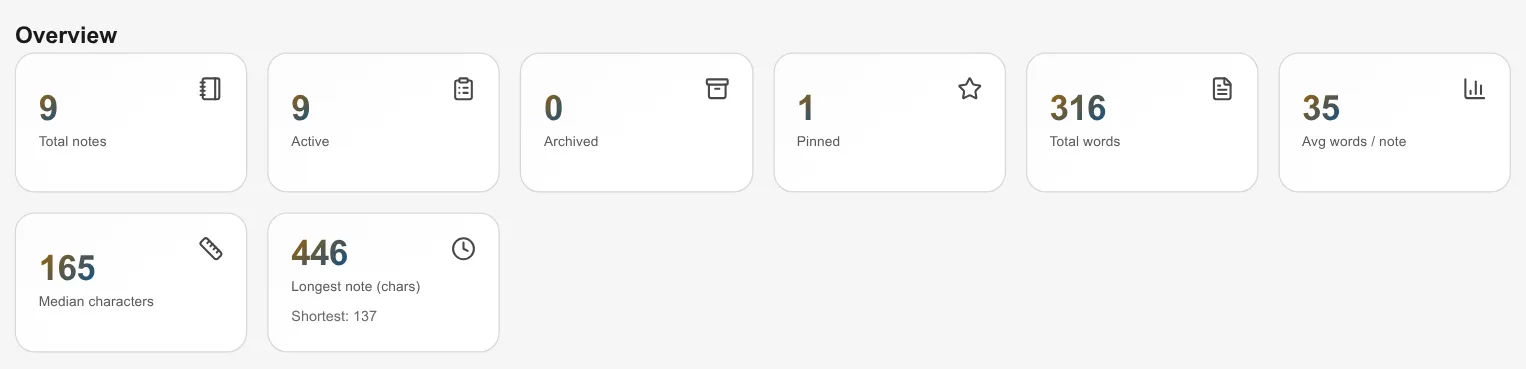
The Overview section shows headline cards for the selected range: Total notes, Active, Archived, Pinned, Total words, Avg words / note, Median characters, and Longest note (chars), plus the shortest note's length. Numbers are formatted for your language.
Charts
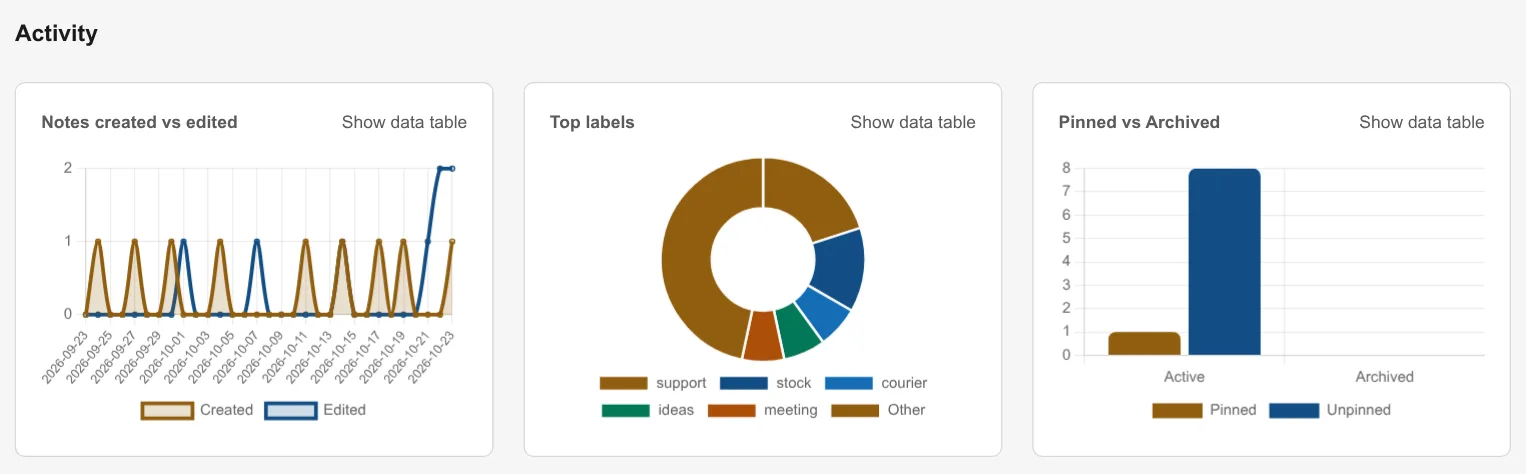
The Activity section holds three charts:
- Creation line chart: notes created and edited per day across the selected range. Every day in the range gets a bucket, zero-filled where nothing happened, in ascending date order. For All, the chart covers at most the last 366 days.
- Label doughnut: share of notes per label. The top 5 labels are shown individually and the rest are grouped as Other.
- Pinned and archived bar: four quadrant counts for the selected range, Pinned and Active, Pinned and Archived, Unpinned and Active, Unpinned and Archived, summing back to the total note count in range. The chart follows the active range selector alongside the KPI cards.
Each chart carries a text label for assistive technology plus a keyboard-reachable data-table toggle that exposes the same numbers as text. Chart animation is disabled automatically when your system requests reduced motion.
Loading, empty, and error states
- Loading shows a polite status while the tab reads local statistics.
- Empty (no notes yet) shows a description with a button that routes back to the Notes page so you can create your first note.
- Error shows a message with a Retry button that reloads the same range without losing your place. Switching ranges quickly never leaves stale data on screen.
All statistics are computed locally on your device from your own notes. Nothing is uploaded to produce them.